WIFI / Bluetooth Interface
Rhino Pi X1
- WIFI: Supports Wi-Fi 7 (802.11be), 2.4G / 5G / 6G Hz DBS, 2*2 MIMO
- Bluetooth: Supports BT 5.3
The antenna interface uses an IPEX Gen 4 connector. To use the WIFI / BT functions, two antennas need to be installed to enhance the WIFI / BT transmit power and receive sensitivity.
Hardware Connection
Install the antennas to the antenna interfaces of the Rhino Pi X1.
Tip
You can refer to the Hardware Information tutorial to locate the corresponding hardware interfaces.
Recommended antenna: AIWF022 antenna
Purchase link: AIWF022 Antenna WIFI7 Built-in FPC Antenna 2.4G & 5.8G Dual-band PCB Flexible Antenna ZigB - Taobao
WIFI Usage
Tip
All the following tests are performed in AidLux. Please refer to the AidLux / Ubuntu System - Quick Start - Browser Login section to log in to the system.
After installing the antennas, open the AidLux Web desktop, click Settings - Wireless Settings, and connect to a wireless WIFI network. After connection, you can check the WIFI signal strength using the following command:
iw dev wlan0 linkThe command output is as follows:
Connected to 62:65:b2:8e:53:29 (on wlan0)
        SSID: TestGroup_5G
        freq: 5180
        RX: 10064 bytes (31 packets)
        TX: 8704 bytes (50 packets)
        signal: -46 dBm
        rx bitrate: 309.7 MBit/s 40MHz HE-MCS 6 HE-NSS 2 HE-GI 0 HE-DCM 0
        tx bitrate: 206.4 MBit/s 40MHz HE-MCS 4 HE-NSS 2 HE-GI 0 HE-DCM 0
Bluetooth Usage
Bluetooth Connection on the Integrated System
For the Bluetooth connection of the Rhino Pi X1 integrated system, you only need to connect on the Android side. The connection method is as follows:
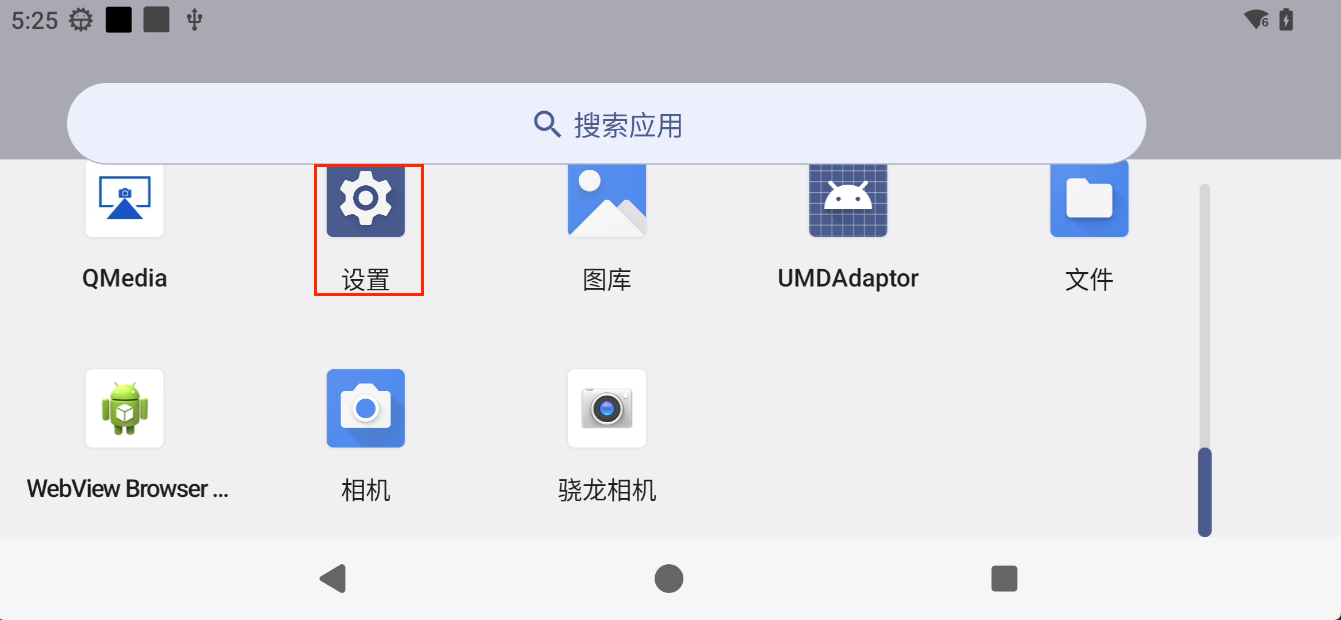
- Open the Android home screen, press and hold the left mouse button and slide upward on the screen, then find the
Settingsoption on the page that appears.
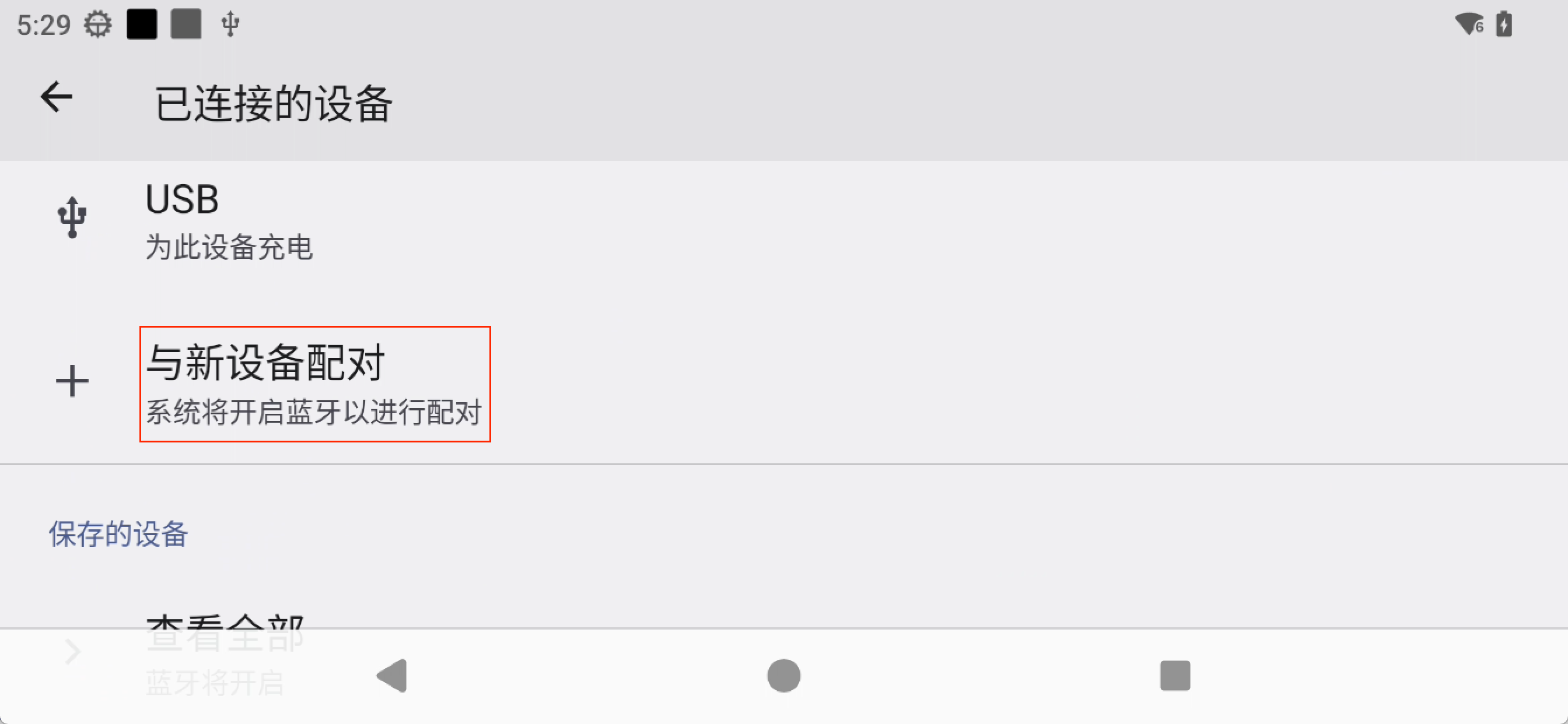
- Click
Settings-Connected devices-Pair new deviceto scan and connect Bluetooth devices.
Bluetooth Connection on Ubuntu
The connection method for the Rhino Pi X1 Ubuntu system is as follows:
Connect an HDMI display and log in to the GNOME desktop.
Click
Settings-Bluetoothto open the Bluetooth settings and connect.