Display Login
Prerequisites
You will need to prepare the following hardware:
- Board: Rhino Pi X1
- Power: DC 12V 5A power adapter
- Display: HDMI cable and monitor
- Input: Keyboard and mouse (for GUI operation)
Booting the Board
The board comes with Android 13 pre-installed. After connecting the 12V power adapter, the board will automatically boot.
- Boot process: The power indicator LED stays solid red
- System ready: The RGB LED stays solid red and the fan starts spinning, indicating boot is complete
Logging into Android
After the first boot, you will see the Android home screen. Swipe up with the mouse to reveal the app menu.
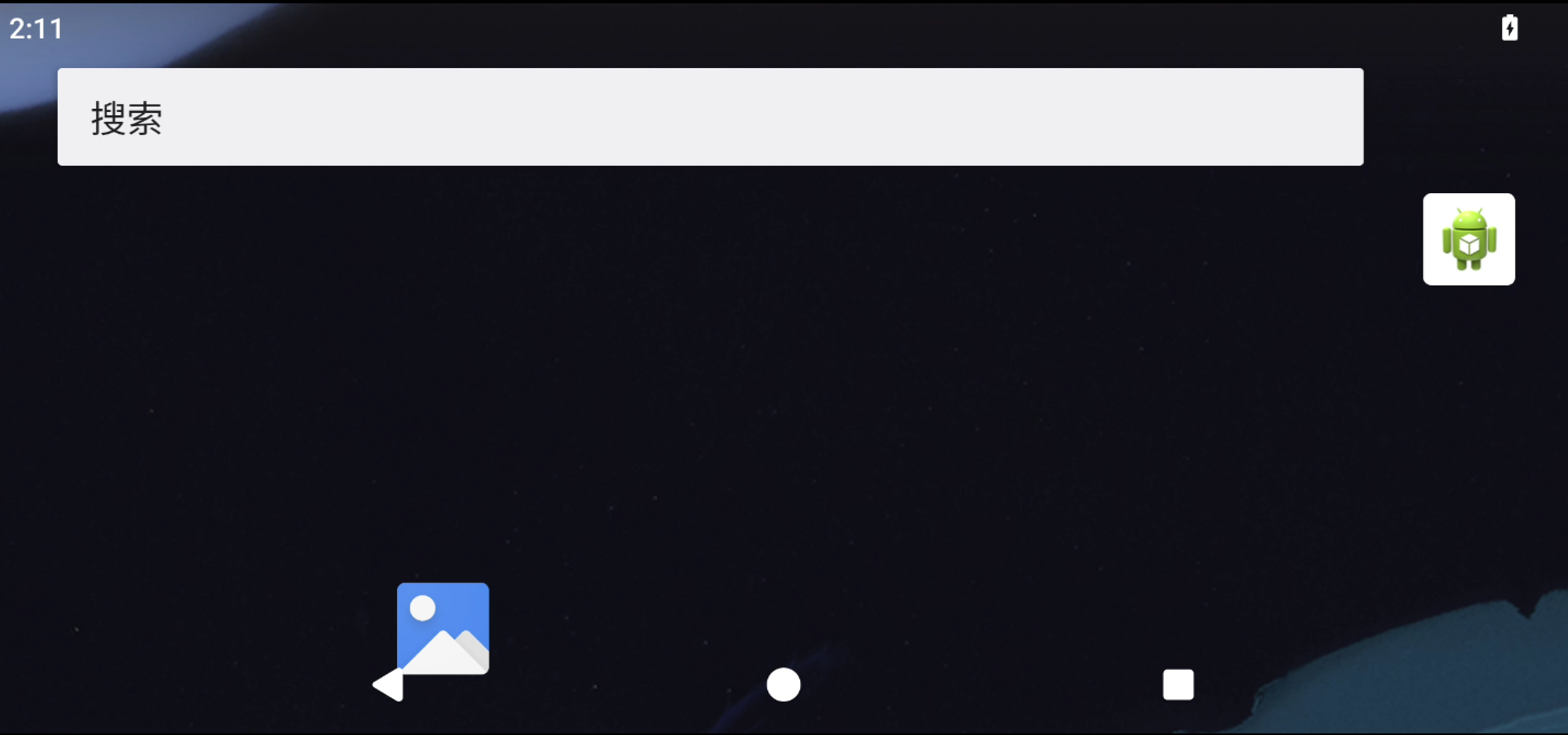
Checking the AidLux Hybrid System
You can check whether the board has AidLux installed.
After entering Android, swipe up to open the app menu. If the AidLux app icon is present, the AidLux hybrid system is pre-installed:
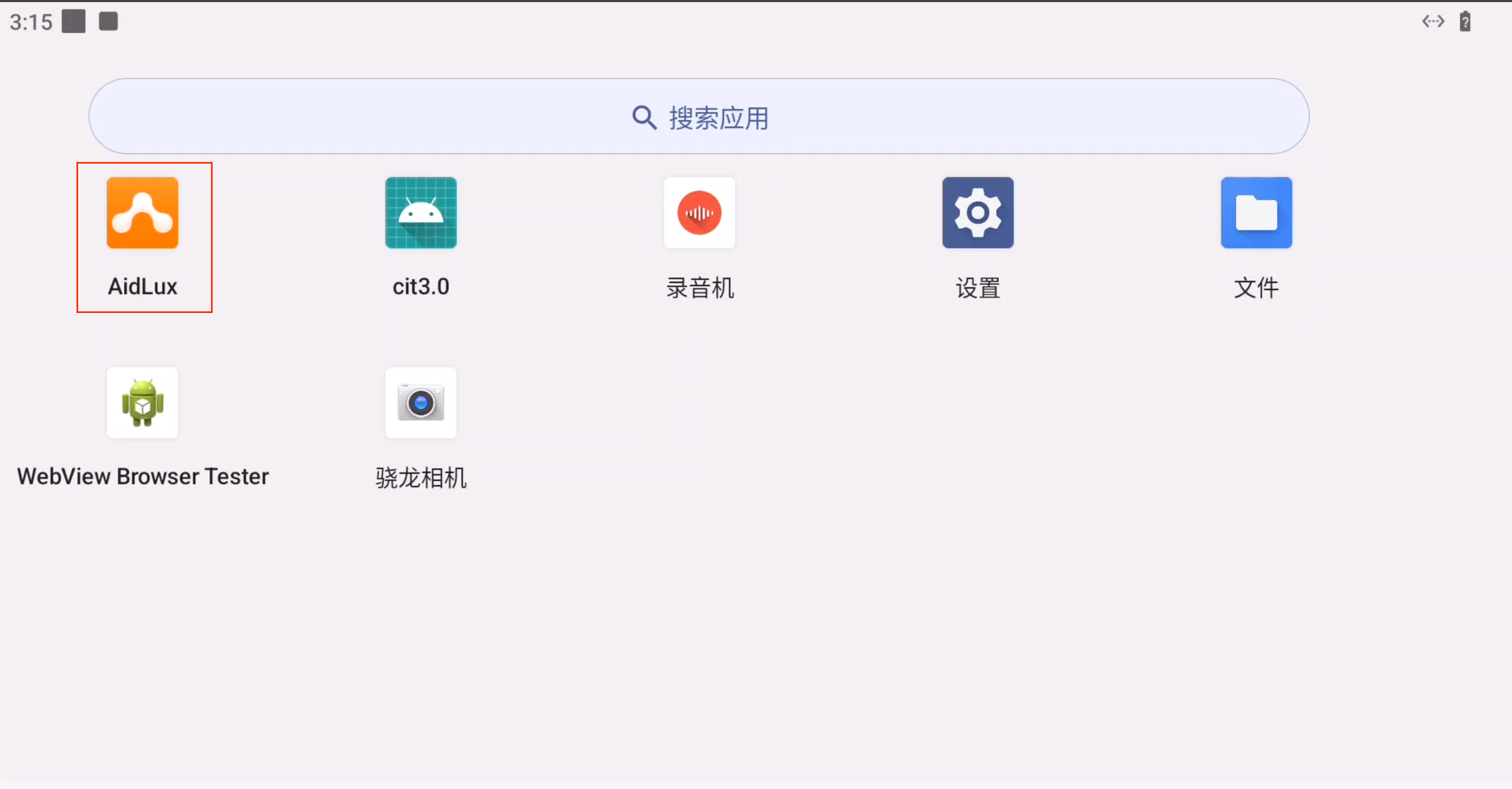
Click the AidLux icon to enter the Aid-Desktop interface of the AidLux hybrid system.
Notice
If the AidLux icon does not appear in the app menu, you will need to install the AidLux hybrid system manually. See Installing AidLux Hybrid System
Logging into AidLux Hybrid System
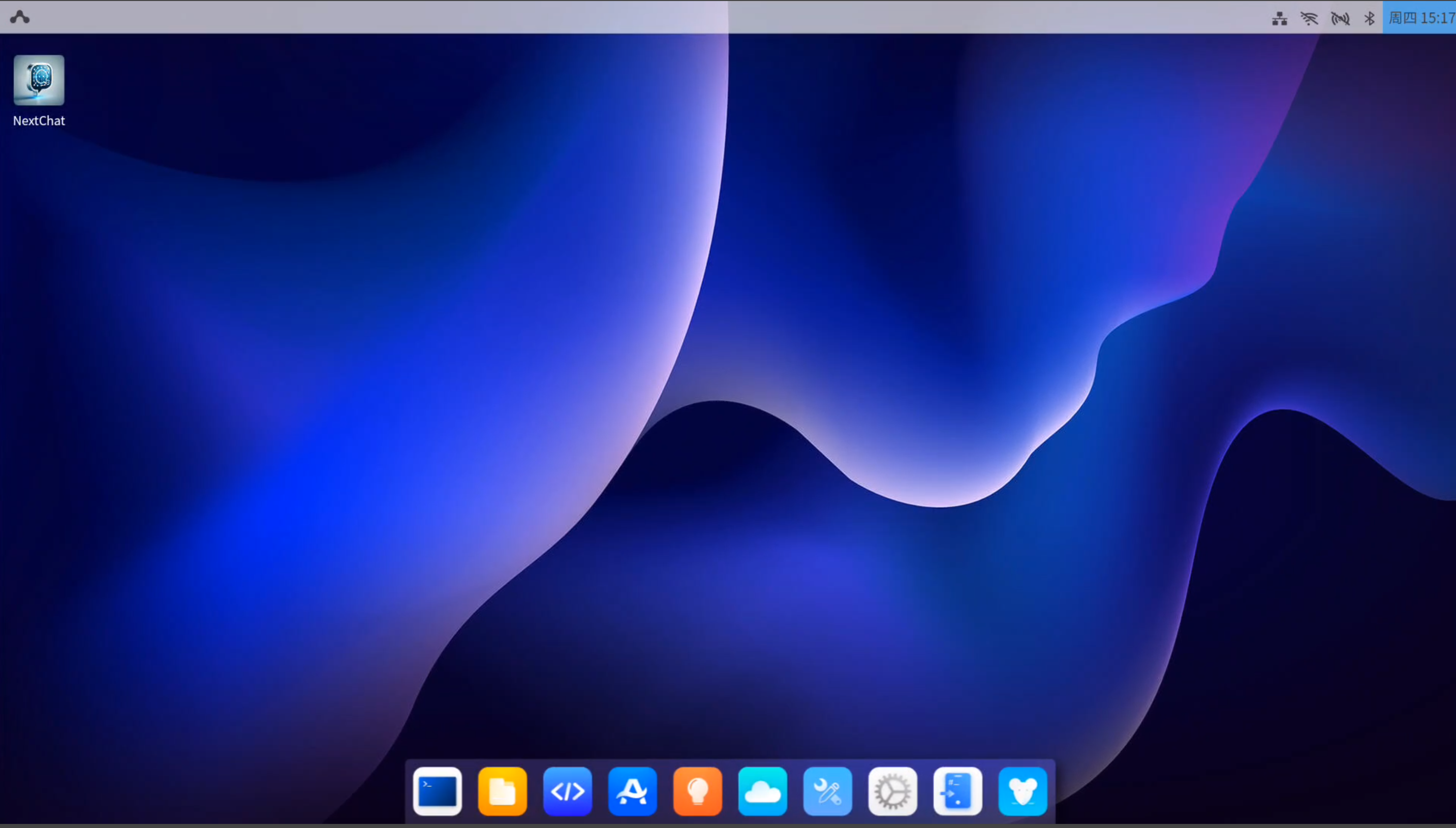
After entering Android, swipe up to open the app menu, then click the AidLux icon to enter the Ubuntu 22.04 system interface.
The AidLux Ubuntu 22.04 desktop looks like this:
Using the System
Once the system has started successfully, you can use Android 13 and Ubuntu 22.04 on the Rhino Pi X1. See System Usage
Tip
If you need to reinstall the system or perform an OTA upgrade, see System Flashing