Line IN/OUT
Audio Testing
Note
The Line-in interface only supports active microphones.
Audio devices cannot be used by Android and Ubuntu systems simultaneously. When switching between systems, you need to switch the audio device.
Hardware Connection
- Connect the microphone to the LINE IN port (red 3.5mm jack)
- Connect the speaker to the LINE OUT port (green 3.5mm jack)
Using Audio on Android
Log in to the AidLux Web desktop. Execute the following command:
- Switch to Android system for audio device usage (if this setting has not been changed, Android is the default, no manual switching needed)
shell
audio-route-qcs8550 --os Android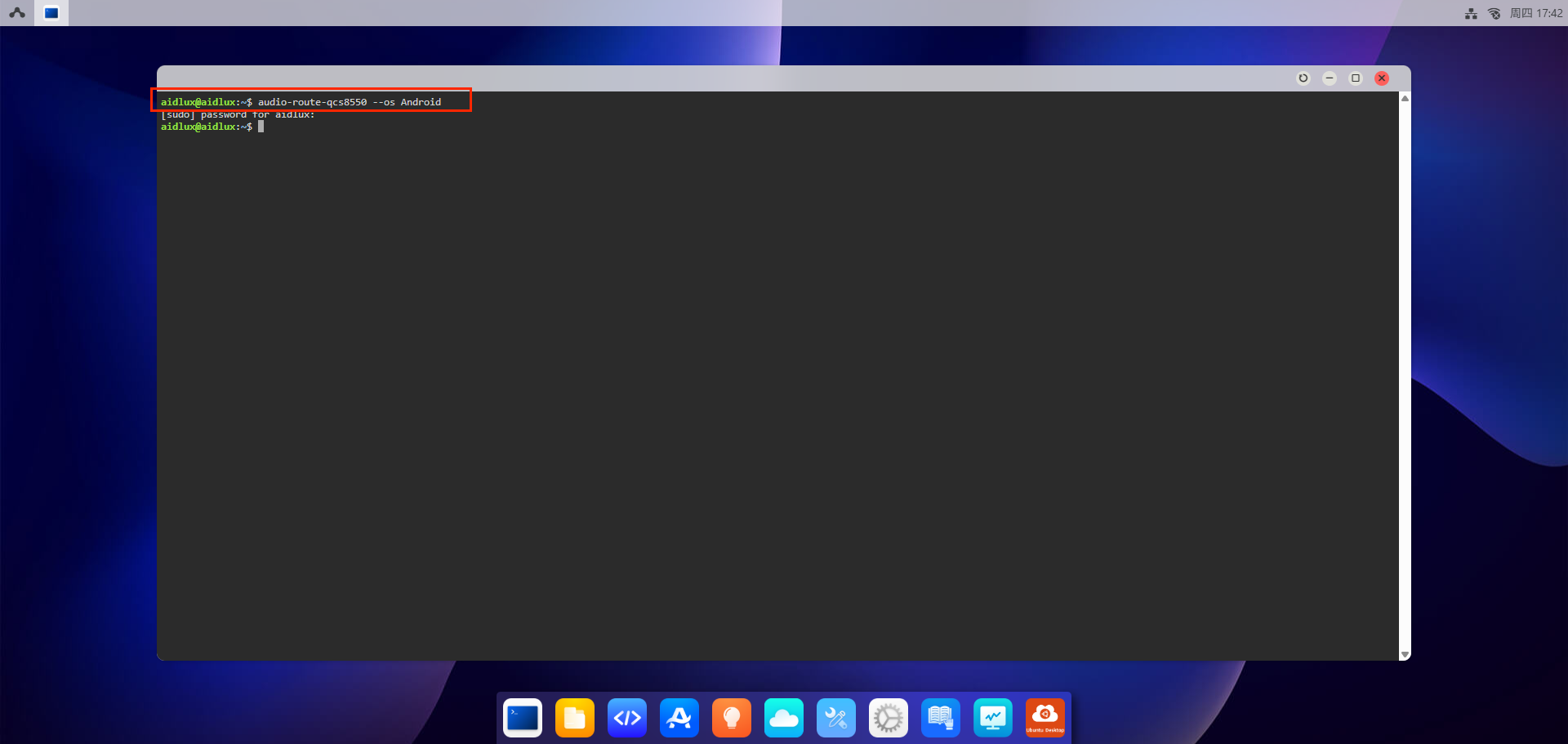
Use screen casting or direct display connection to log in to the Android home screen
Click and drag the left mouse button upward to open the
Recorderapp
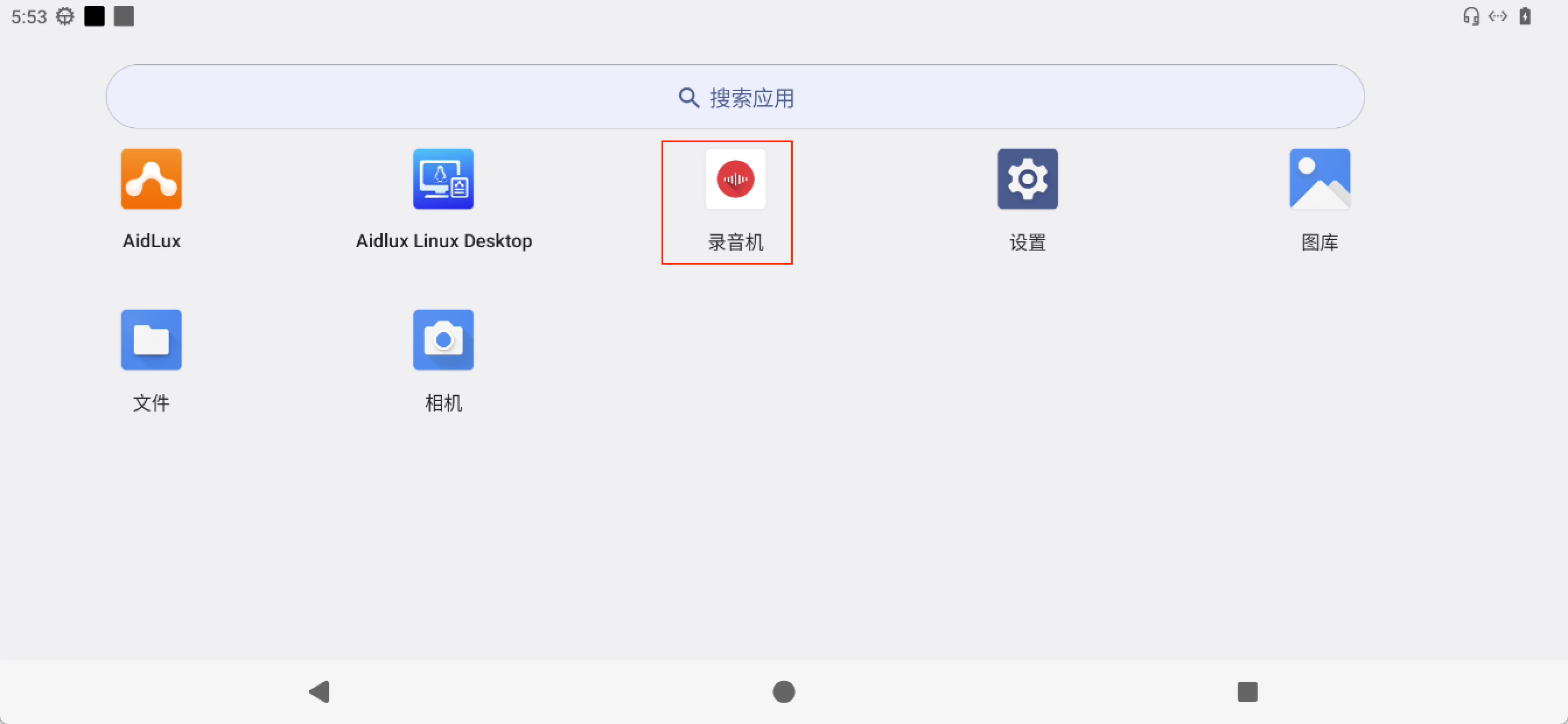
- You can use this app for recording and playback testing
Using Audio on Ubuntu
Log in to the AidLux Web desktop. Execute the following command:
- Switch to Ubuntu system for audio device usage (if this setting has not been changed, Android is the default)
shell
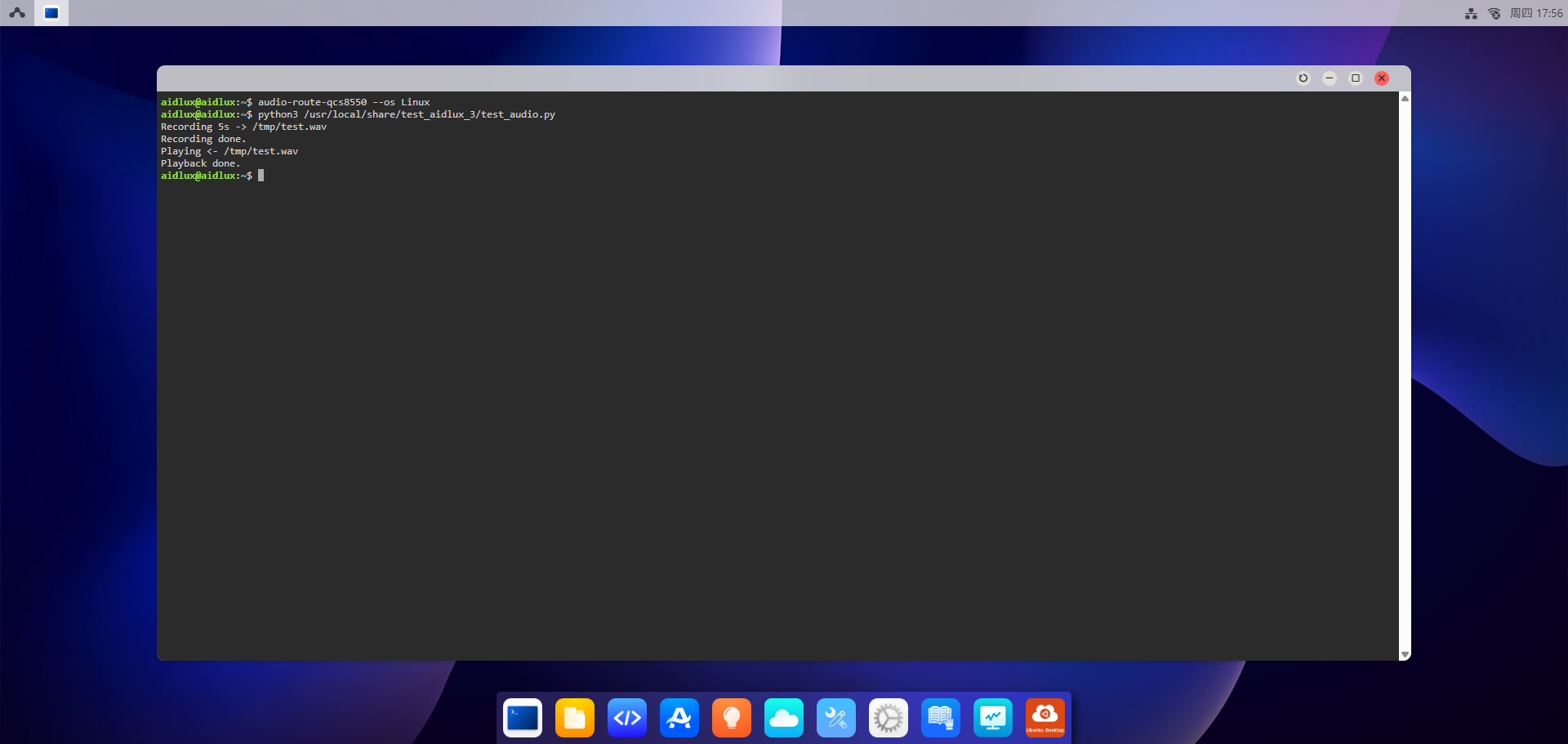
audio-route-qcs8550 --os Linux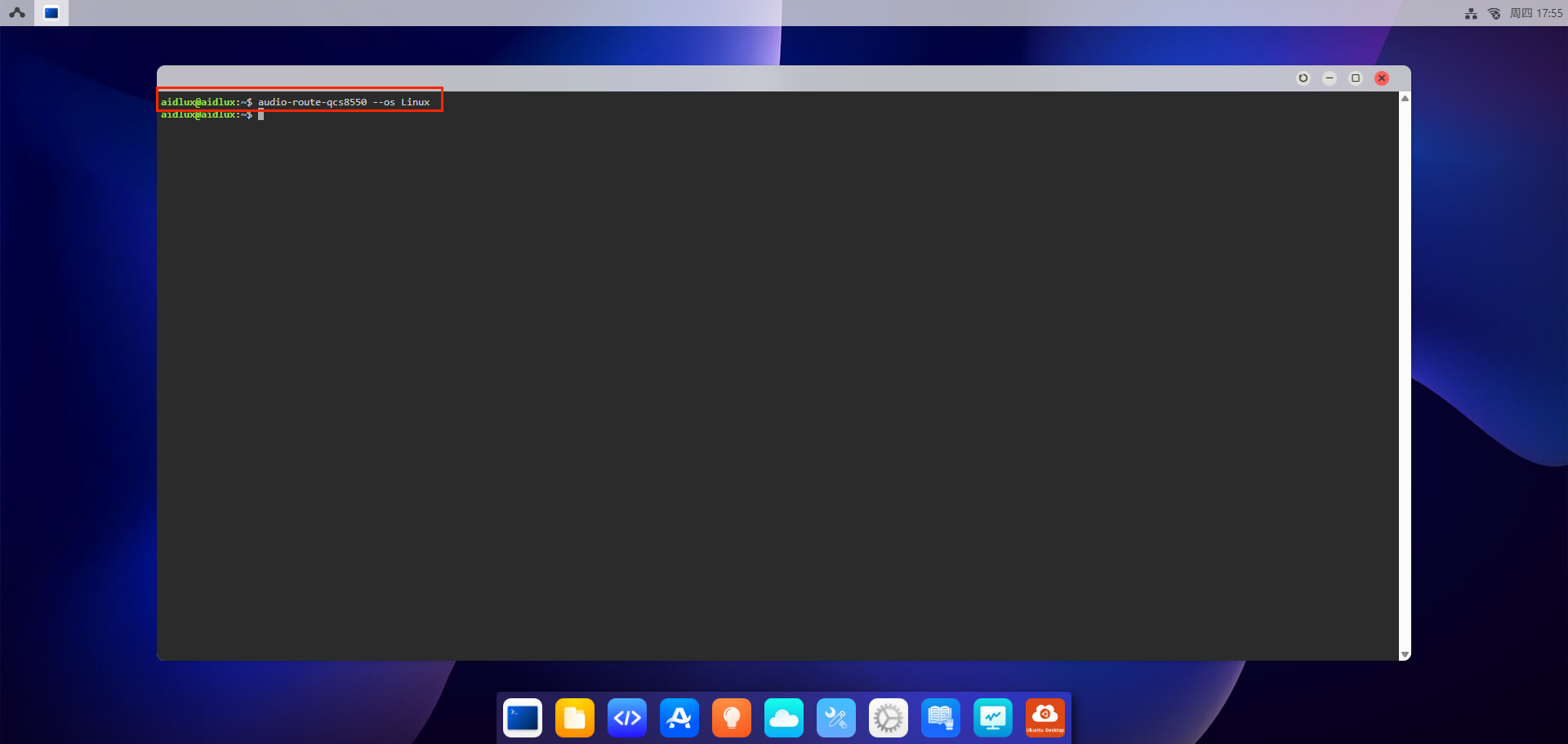
- Run the script for recording and playback testing
shell
python3 /usr/local/share/test_aidlux_3/test_audio.pyAfter executing the script, it will automatically record for 5 seconds and then play back the recorded audio.