Qt Screen Copy Login (Recommended)
Prerequisites
You will need to prepare the following hardware:
- Board: Rhino Pi X1
- Power: DC 12V 5A power adapter
- Input: USB Type-A to Type-C cable
Installing QtScrcpy
Visit the QtScrcpy download page, download the appropriate package for your platform, and install:
Booting the Board
The board comes with Android 13 pre-installed. After connecting the 12V power adapter, the board will automatically boot.
- Boot process: The power indicator LED stays solid red
- Connect the USB Type-A to Type-C cable: Type-A to your Windows PC USB port, Type-C to the board's Type-C port.
- System ready: The RGB LED stays solid red and the fan starts spinning, indicating boot is complete
Connecting the Device
Connect the board to your PC using the Type-C cable.
Accessing the System via QtScrcpy
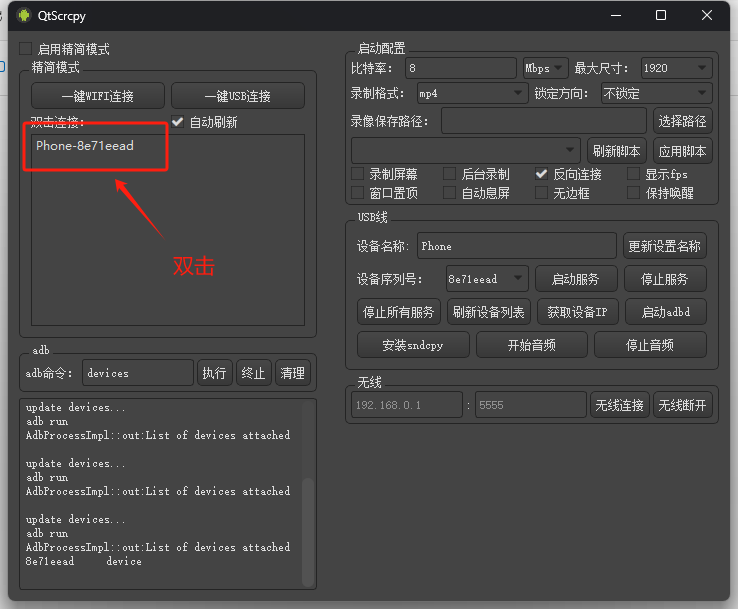
Open the QtScrcpy application and it will detect the board device. Double-click to access the device screen.
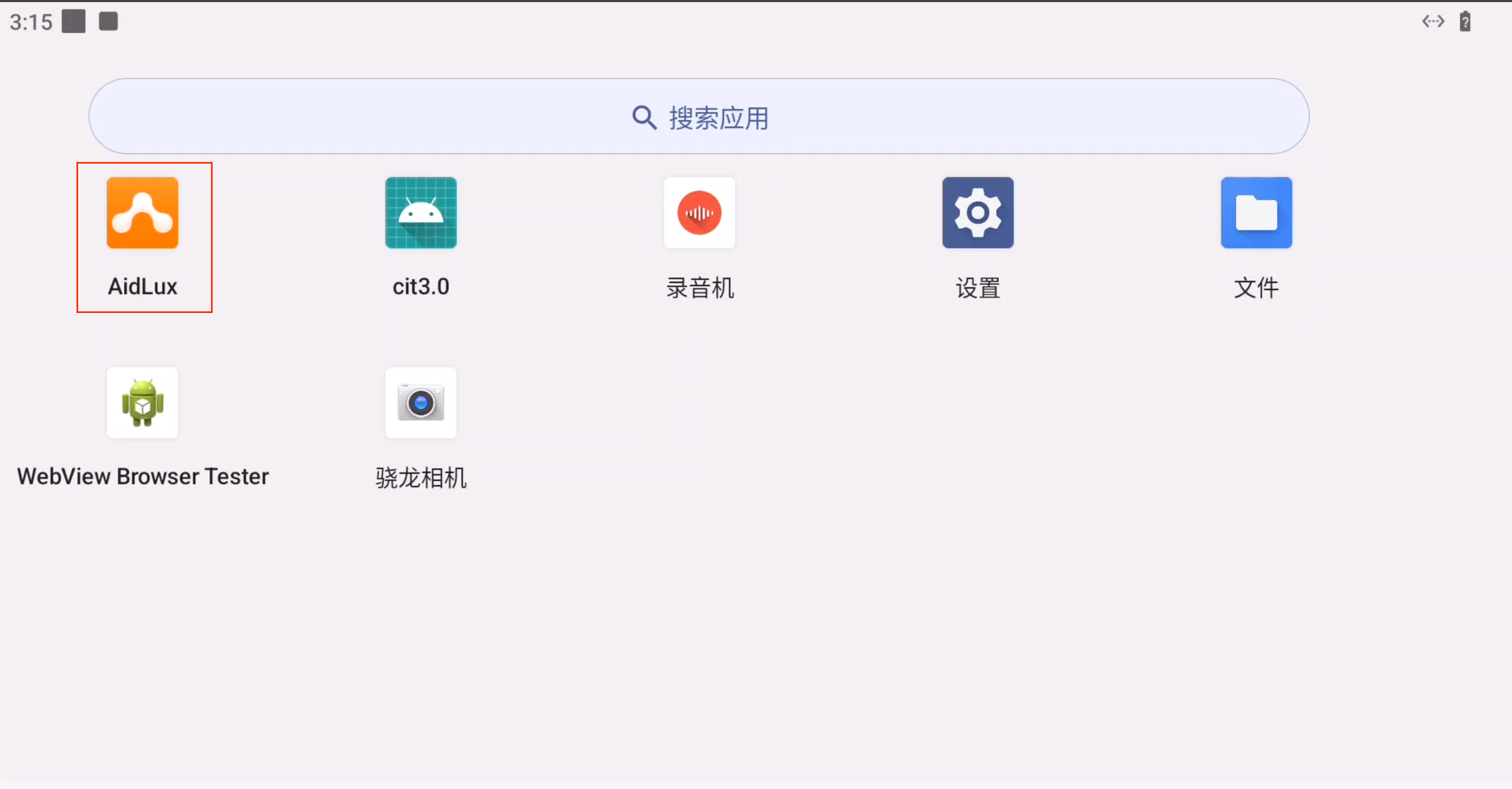
Entering the AidLux Hybrid System
After the device screen appears, swipe up with the mouse to open the app menu. Click the AidLux icon to enter the Ubuntu 22.04 system interface.
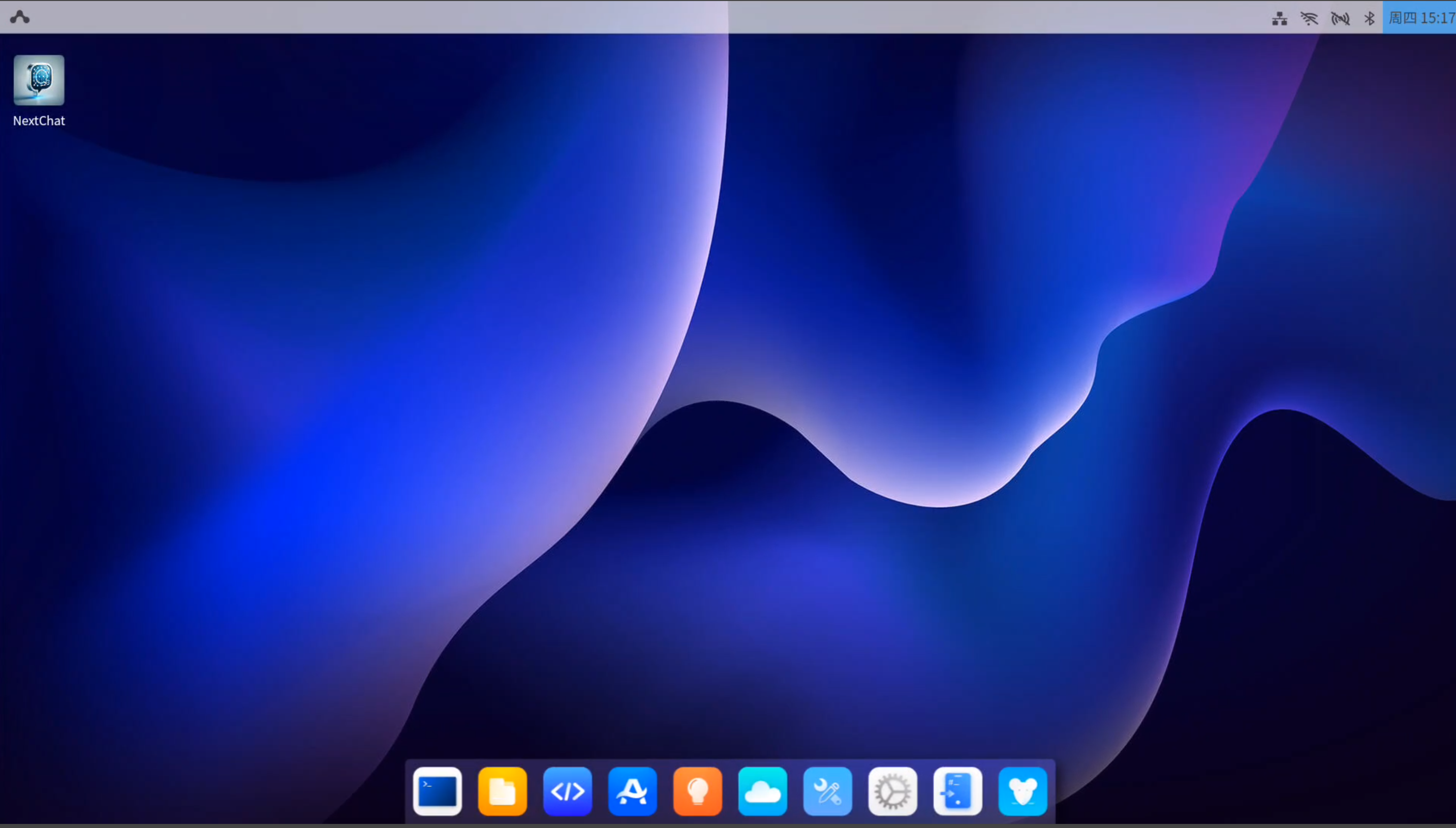
The AidLux Ubuntu 22.04 desktop looks like this: