Display Direct Connection Login
Prerequisites
Developers need to prepare the following hardware in advance:
- Main board: Rhino Pi-A1
- Power supply: DC 12V/24V 3A power adapter
- Display device: Type-C to DP cable and a monitor
- Input device: Keyboard and mouse (for GUI operations)
Starting the Board
The board comes with Android 14 pre-installed. After powering it with a DC 12V/24V 3A power adapter, the board will boot the system automatically.
- System boot: The power indicator stays solid blue.
Logging in to the Android System
After the board is powered on for the first time, you can see the Android system home screen. Swipe up with the mouse to bring up the application menu.
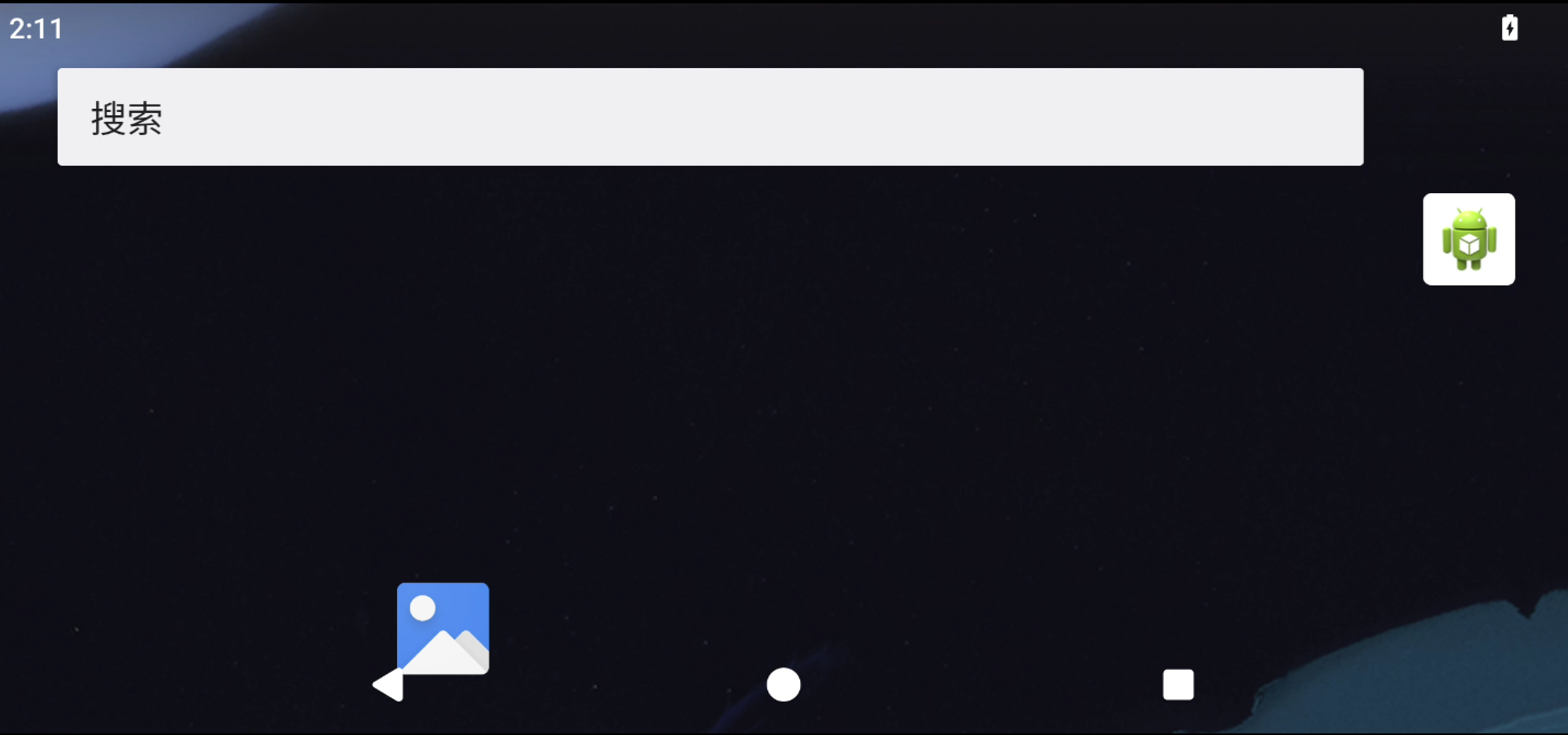
Checking the AidLux Integrated System
Developers can check whether the AidLux integrated system is installed on the board.
After entering the Android system, swipe up with the mouse to bring up the application menu. If the AidLux application icon is present, the AidLux integrated system is pre-installed:
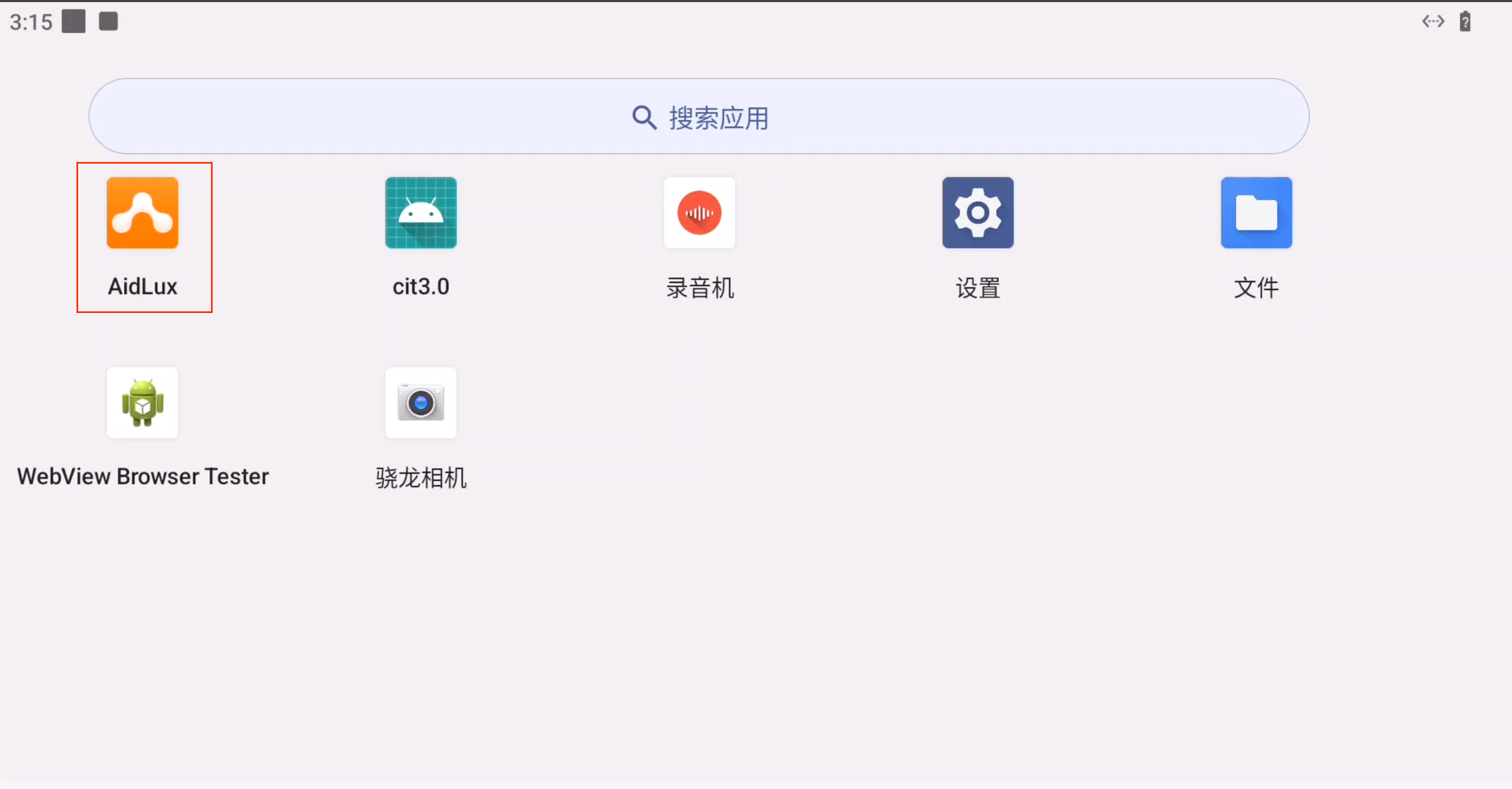
Click the AidLux application icon to enter the Aid-Desktop interface of the AidLux integrated system.
Note
If the AidLux application icon is not present in the application menu, you need to install the AidLux integrated system yourself. Please refer to Installing the AidLux Integrated System.
Logging in to the AidLux Integrated System
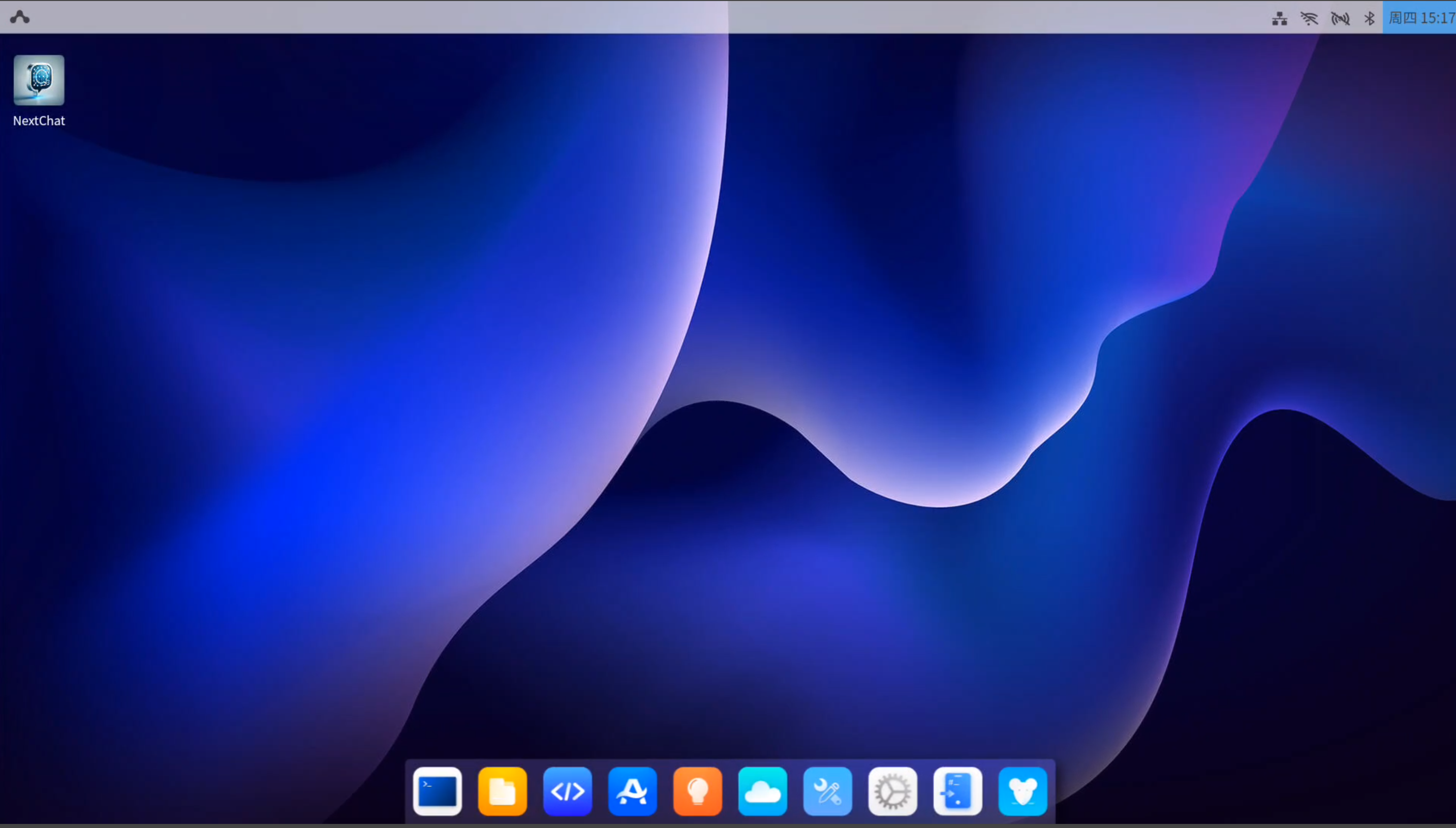
After entering the Android system, swipe up with the mouse to bring up the application menu, and click the AidLux application icon to enter the Ubuntu 22.04 system interface.
The Ubuntu 22.04 system interface of AidLux is as follows:
Using the System
After the system boots successfully, developers can use Android 14 and Ubuntu 22.04 on the Rhino Pi-A1. Please refer to System Usage.
Note
If you need to reinstall the system or perform an OTA upgrade, please refer to: System Flashing.