Network Config
Note
The Rhino Pi X1 device uses a 1WAN + 3LAN port configuration. To access the external network, connect the Ethernet cable to port 17 (see the Hardware Info section).
WAN Port Dynamic IP Configuration
If your development environment has a local network with a DHCP server that assigns IP addresses to downstream devices, follow these steps to obtain a dynamic IP address.
The Rhino Pi X1 is set to DHCP by default, so it will obtain an IP automatically after connecting the Ethernet cable and powering on. On your Windows PC, press Win+R, type cmd, and in the terminal window run:
- Enter
adb shellto access the host system:
adb shell- Run
ifconfig eth0to view the assigned IP address:
ifconfig eth0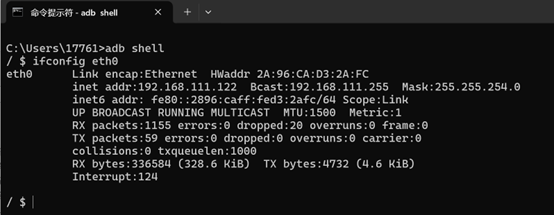
WAN Port Static IP Configuration
The Rhino Pi X1 supports static IP configuration. Follow these steps:
- If the Ethernet cable is connected to the WAN port, set a static IP for eth0. On your Windows PC, press Win+R, type
cmd, and run:
adb shell
am broadcast -a a.e.c --es eth1 ia:s,ip:192.168.3.3,sm:255.255.255.0
💡Note
The IP address and subnet mask shown above are only for reference. Set them according to your actual network environment. Changes take effect after reboot.
Restoring Dynamic IP
- To restore dynamic IP settings, on your Windows PC press Win+R, type
cmd, and run:
adb shell
am broadcast -a a.e.c --es eth1 ia:d
Wireless Wi-Fi Configuration
Tip
An antenna must be connected to the device when using Wi-Fi.
The Rhino Pi X1 supports Wi-Fi connectivity. To connect the board via local Wi-Fi, follow these steps:
After connecting the Windows PC to the board with a Type-C cable, open the screen mirroring software (QtScrcpy).
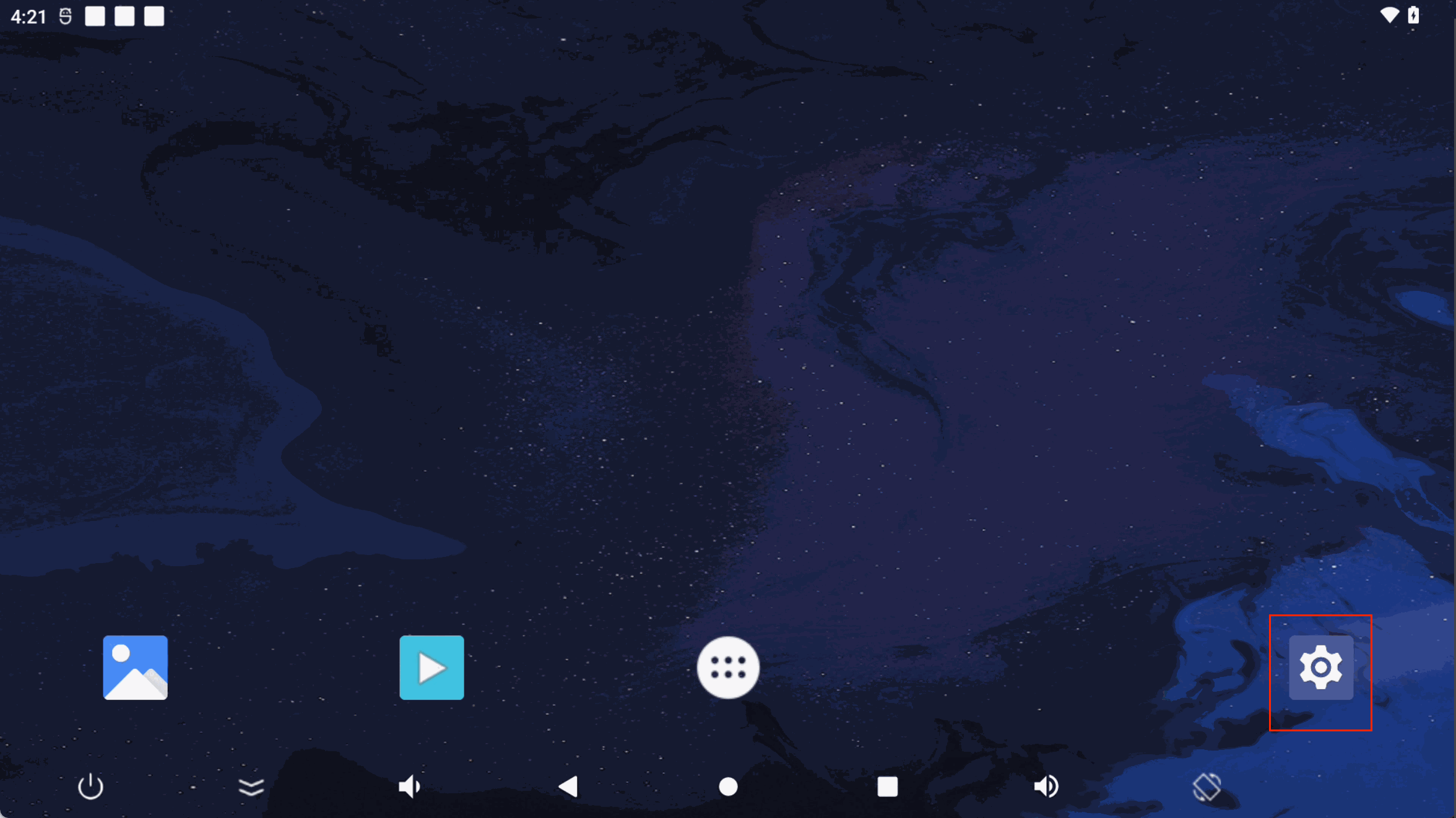
Once on the Android desktop via screen mirroring, left-click the
Settingsbutton to open the Android system settings.
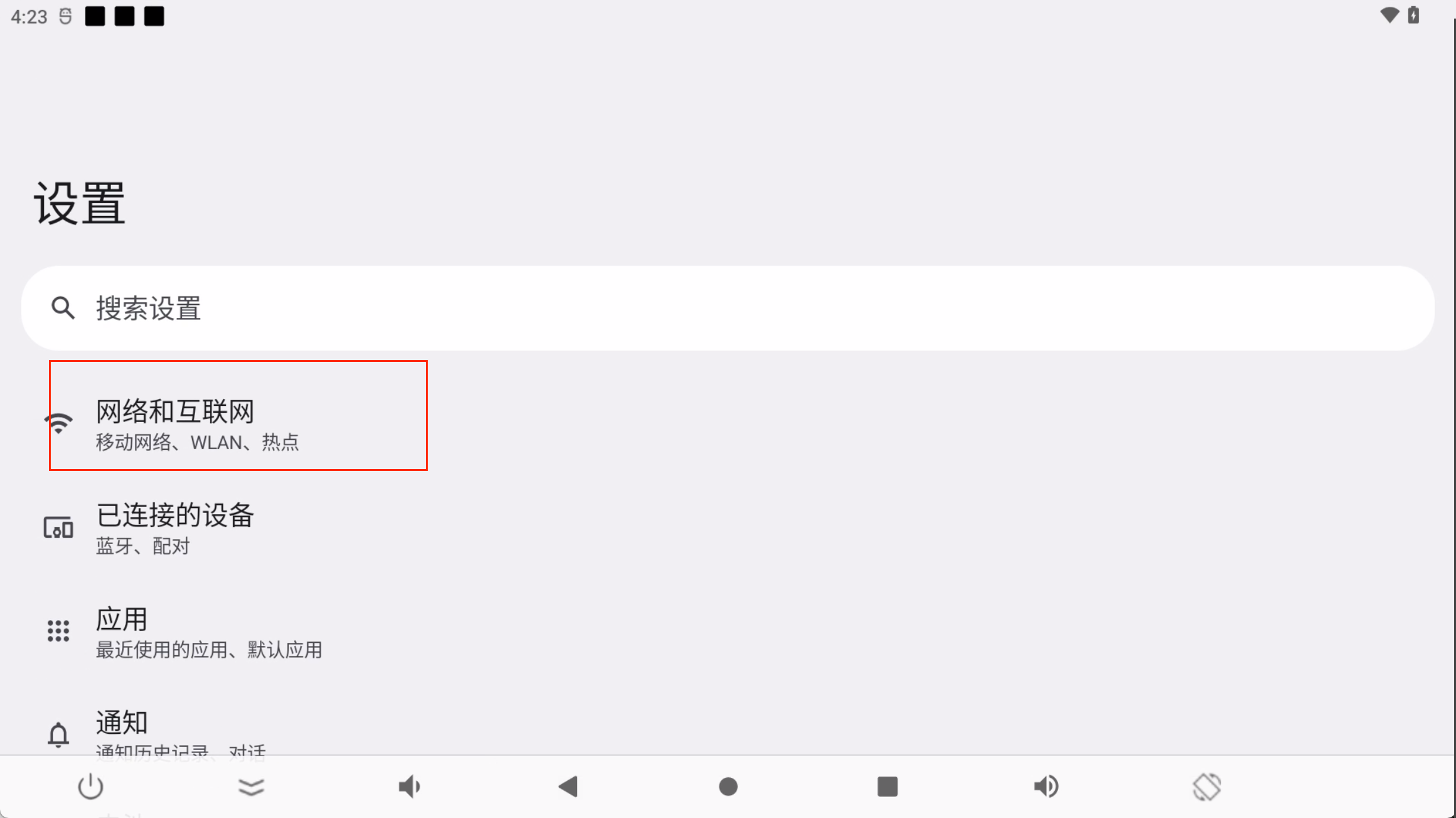
- Click
Network & Internet.
- Click
Internet.
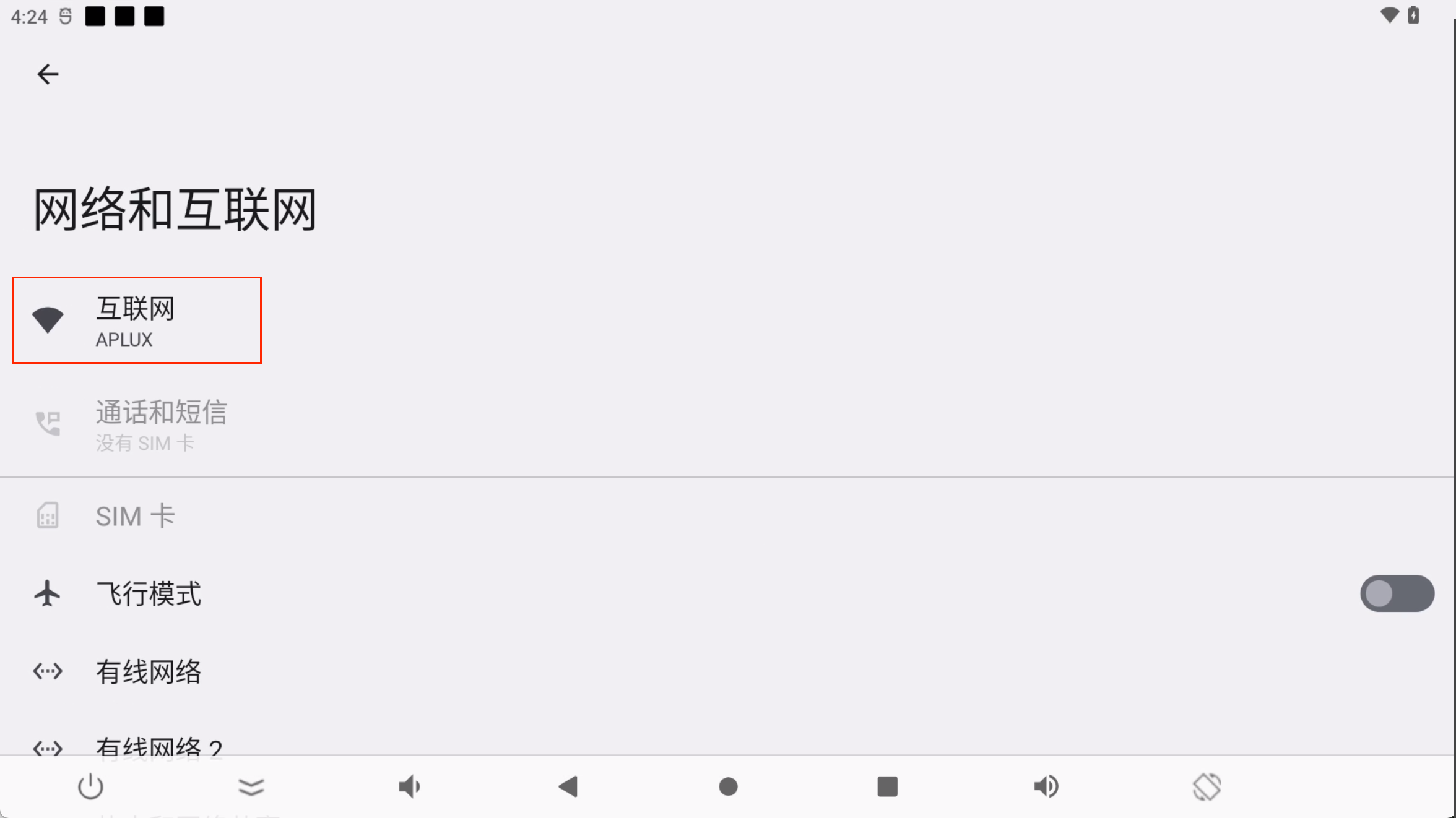
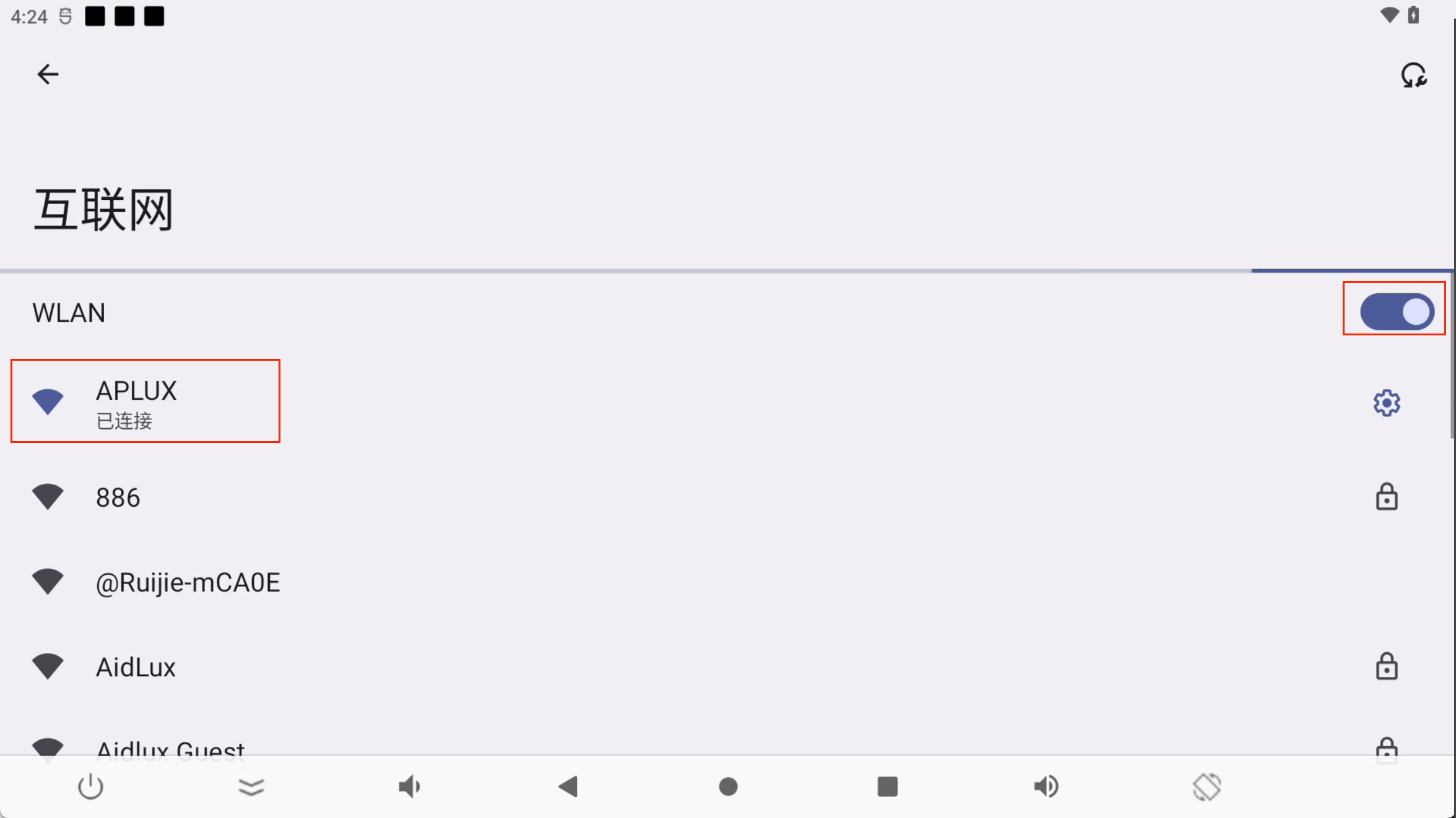
- Enable
WLANand connect to the desired Wi-Fi network.
- After the connection is established, run
ifconfig wlan0to view the assigned IP address:
adb shell
ifconfig wlan0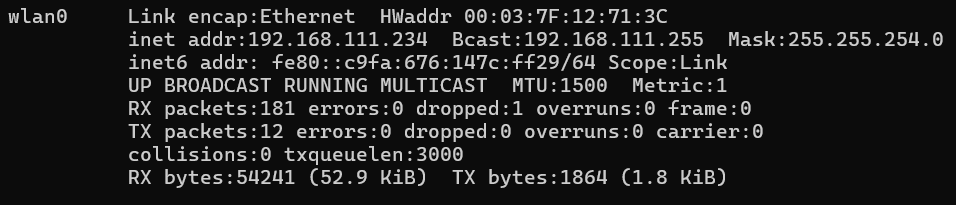
LAN Port Settings
Using LAN Ports
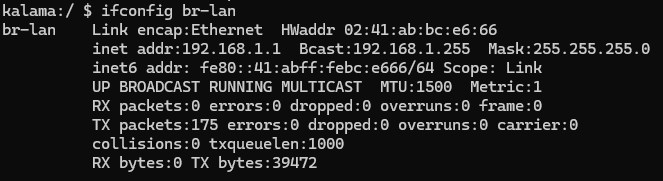
The Rhino Pi X1's 3 LAN ports can connect to other network devices such as IP cameras, LiDAR, etc. Once connected, downstream devices will automatically receive an IP address in the 192.168.1.x/24 range, with gateway 192.168.1.1. The system bridge interface is br-lan, as shown below:
Modifying the LAN Subnet
The LAN subnet can also be customized. The steps are as follows:
- Connect via adb and log into the system:
adb shell- Obtain root privileges. Password:
P@ssw0rd4aidlux
su- Modify the subnet:
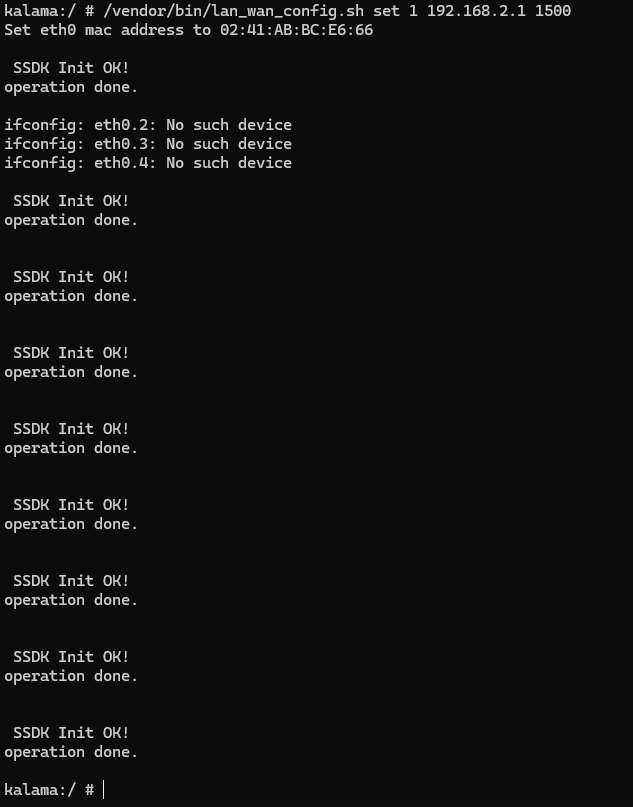
/vendor/bin/lan_wan_config.sh set 1 192.168.2.1 1500