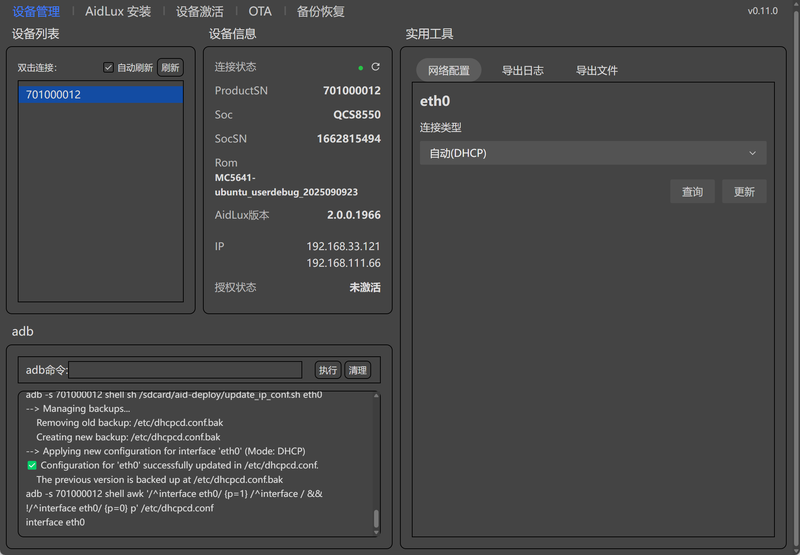
aid-deploy-tool Configuration
After installing the aid-deploy-tool, you can also use it to quickly configure the device IP. For tool installation, refer to Tool Download.
Configure Wired Network Static IP
Connect the device to the Windows PC via Type-A to Type-C cable and open the tool
On the Device Management → Network Configuration page, configure the IP address
Select "Manual" for connection type, and fill in other items as needed
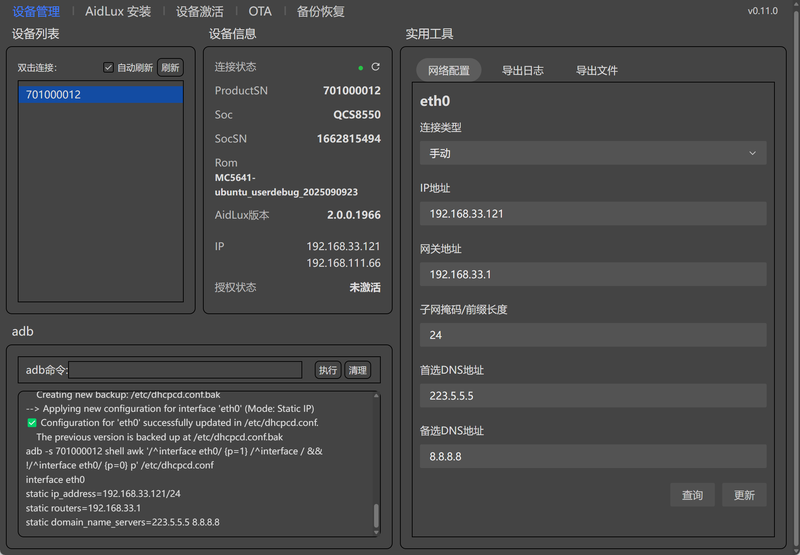
- After filling in, click the "Update" button below
Configure Wired Network Dynamic IP
On first boot, the 2nd Generation Smart Camera's wired network defaults to dynamic IP. If you have previously configured a static IP and want to restore dynamic IP, follow these steps:
Connect the device to the Windows PC via Type-A to Type-C cable and open the tool
Select "Automatic (DHCP)" for connection type, then click "Update"