Audio Test
Rhino Pi X1 supports LINE OUT and LINE IN interfaces, both of which are 3.5mm audio jacks. They need to be used with microphones and speakers equipped with 3-segment plugs.
Note
The Line-in interface only supports active microphones.
Hardware Connection
- Connect the microphone to the LINE IN interface of the device (the red 3.5mm jack).
- Connect the speaker to the LINE OUT interface of the device (the green 3.5mm jack).
Audio Testing
Note
Audio devices cannot be used by Android and Ubuntu systems simultaneously. When switching between systems, you need to switch the audio device.
Using Audio on Android
Log in to the AidLux Web desktop. Execute the following command:
- Switch to Android system for audio device usage (if this setting has not been changed, Android is the default)
audio-route-qcs8550 --os Android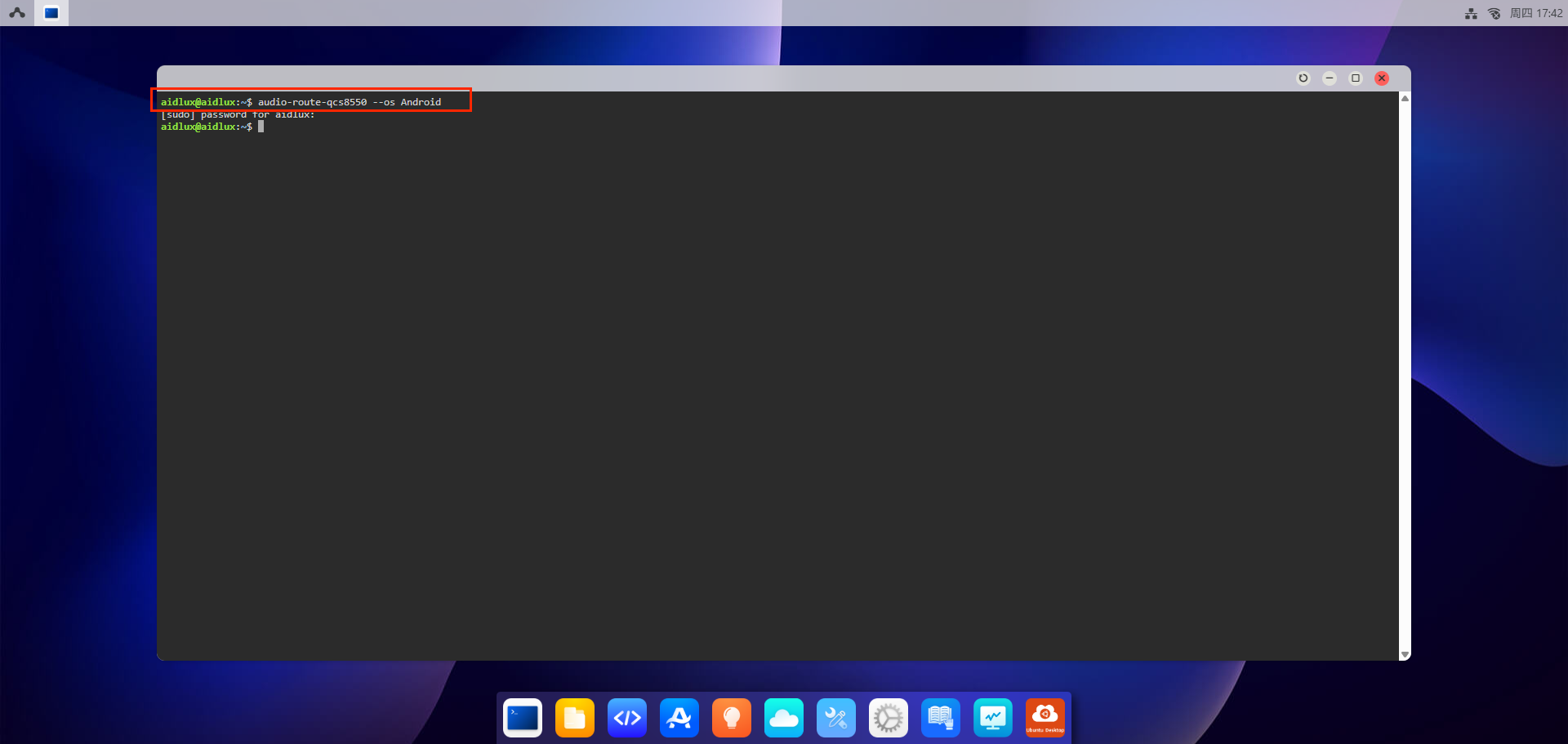
Use screen casting or direct display connection to log in to the Android home screen
Click and drag the left mouse button upward to open the
Recorderapp
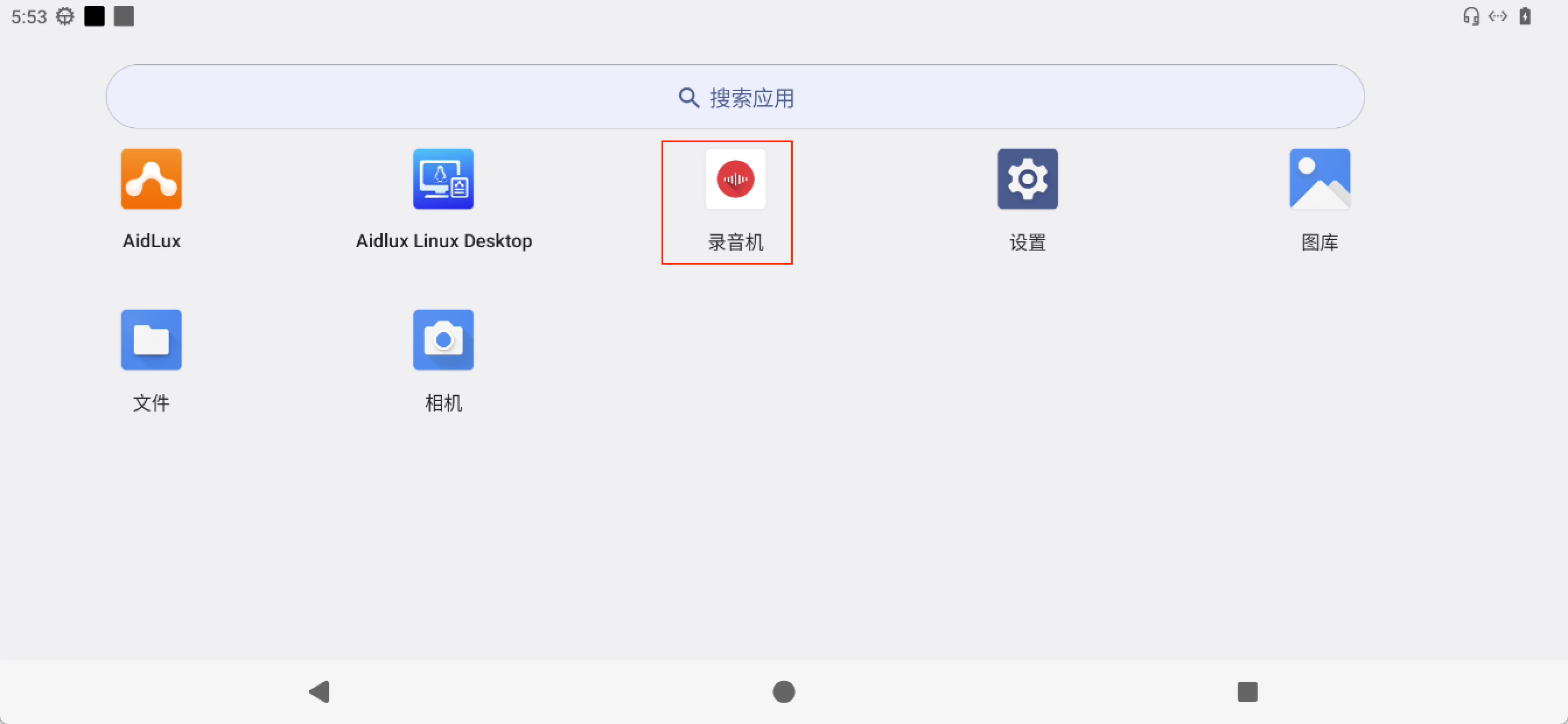
- You can use this app for recording and playback testing
Using Audio on Ubuntu
Log in to the AidLux Web desktop. Execute the following command:
- Switch to Ubuntu system for audio device usage (if this setting has not been changed, Android is the default)
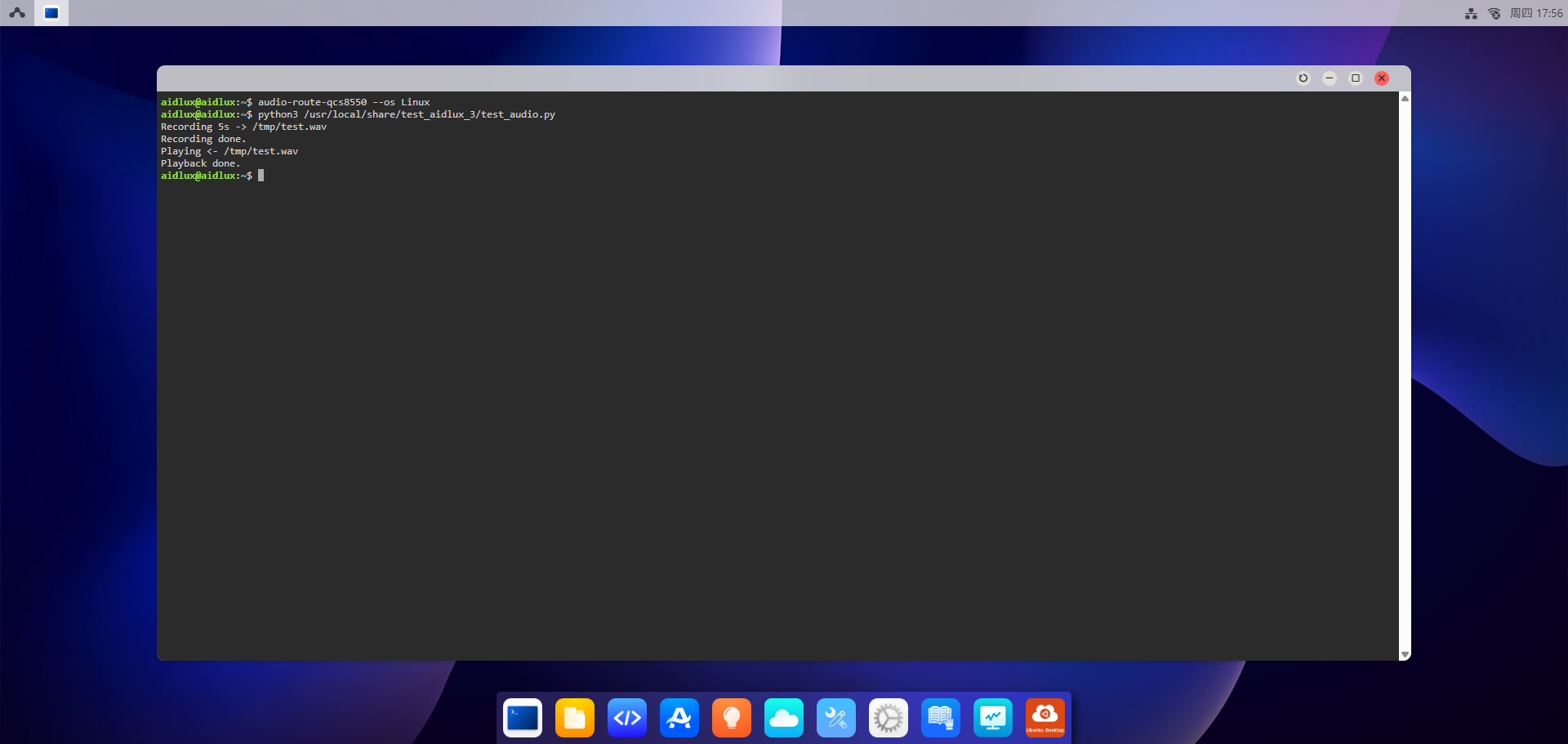
audio-route-qcs8550 --os Linux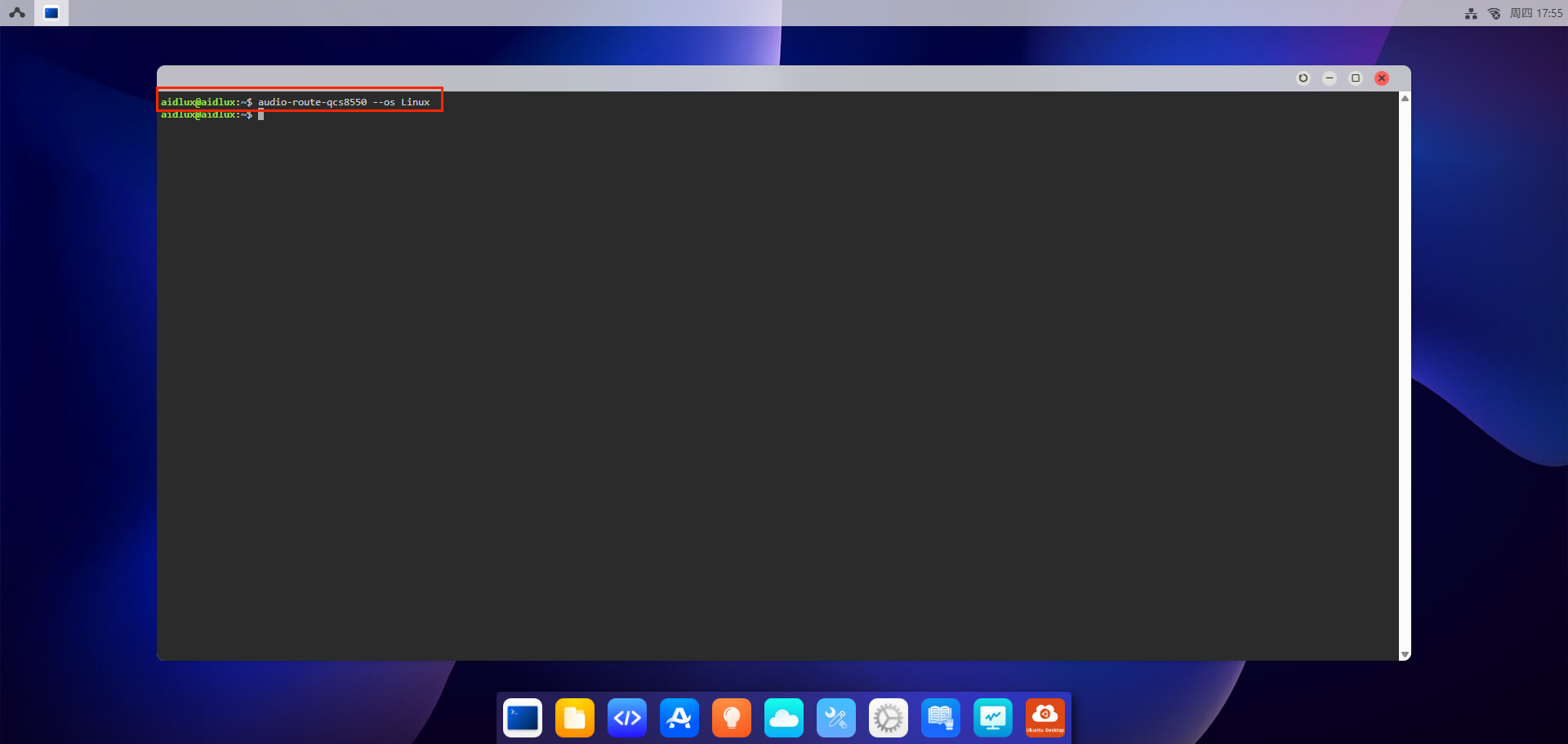
- Run the script for recording and playback testing
python3 /usr/local/share/test_aidlux_3/test_audio.pyAfter executing the script, it will automatically record for 5 seconds and then play back the recorded audio.