NTP Configuration
NTP Introduction
NTP (Network Time Protocol) is used to synchronize the system clocks of multiple devices within a local network. Inconsistent device time can lead to issues such as confusing log timestamps, TLS certificate validation failures, and file timestamp errors.
Scope of Responsibility
| Role | Responsible Party | Description |
|---|---|---|
| NTP Server (time source) | Customer environment administrator | Provides standard time; outside the configuration scope of this document |
| NTP Client (smart camera / development board) | This document | Synchronizes time from the customer's NTP Server |
This document focuses on Client-side configuration. For the Server side, only technical requirements are listed for the customer's administrator reference, along with a configuration example (for reference only).
Components Involved
| Component | Description |
|---|---|
| NTP Server | The node providing the time source in the customer environment, running ntpd, chronyd, etc. |
| NTP Client | The configuration target of this document, an Ubuntu development board using the built-in systemd-timesyncd |
| UDP 123 Port | The default NTP protocol port; the Server must listen on it and the firewall must allow it |
systemd-timesyncd | Ubuntu's built-in lightweight SNTP client, used only for synchronization, not as a Server |
Two Scenarios
| Scenario | Applicable Conditions | Description |
|---|---|---|
| Scenario 1: Public Internet | The development board can directly access the Internet | Use public NTP servers, no customer cooperation required |
| Scenario 2: Intranet Environment | The development board cannot access the Internet, only the LAN | Requires the customer to provide intranet NTP Server information |
Requirements for the NTP Server Side
The following requirements are provided for the customer environment administrator to confirm or set up the NTP Server. Once these conditions are met, provide the necessary information to the Client configuration personnel of this document.
1. NTP Protocol Support (RFC 5905)
The Server must run a standard NTP daemon. The applicability of common solutions is as follows:
| Solution | Representative Software | Suitable as Server |
|---|---|---|
| Classic NTP | ntpd | ✅ Full-featured, good compatibility |
| Modern lightweight NTP | chronyd | ✅ Recommended, performs better in embedded / unstable network environments |
| System built-in | systemd-timesyncd | ❌ Not recommended; it is itself an SNTP client with weak Server capability, unsuitable for multi-client scenarios |
Conclusion: Deploy
chronydorntpdas the Server. Do not usesystemd-timesyncdas a Server.
2. Port Open (UDP 123)
NTP uses UDP default port 123. The Server side must:
- Listen on UDP port 123
- Allow inbound UDP 123 traffic through the firewall
3. Stable and Reliable Time Source
The Server's own time must be accurate. It is recommended to:
- Connect upstream to a public NTP server (e.g.,
ntp.aliyun.com,ntp.ntsc.ac.cn) or a GPS time source - If the Server's own time is inaccurate, the time synchronized to the Client will also be wrong
4. Negotiation Mode
systemd-timesyncd (Client) queries using the standard client-server mode. The Server does not need to support broadcast, multicast, or symmetric key authentication (unless there are special security requirements).
Information the Customer Needs to Provide
| Information Item | Description | Example |
|---|---|---|
| NTP Server IP | The Server's static IP address | 192.168.112.81 |
| Port Number | Default 123; specify if non-default | 123 |
| Network Zone | Confirm the Client and Server are in the same LAN or a routable network | — |
Scenario 1: Public Internet Environment
When the device is connected to the Internet, systemd-timesyncd uses ntp.ubuntu.com as the time source by default, so no additional configuration is required — only verification.
Check Synchronization Status
Run on the Client:
timedatectl timesync-status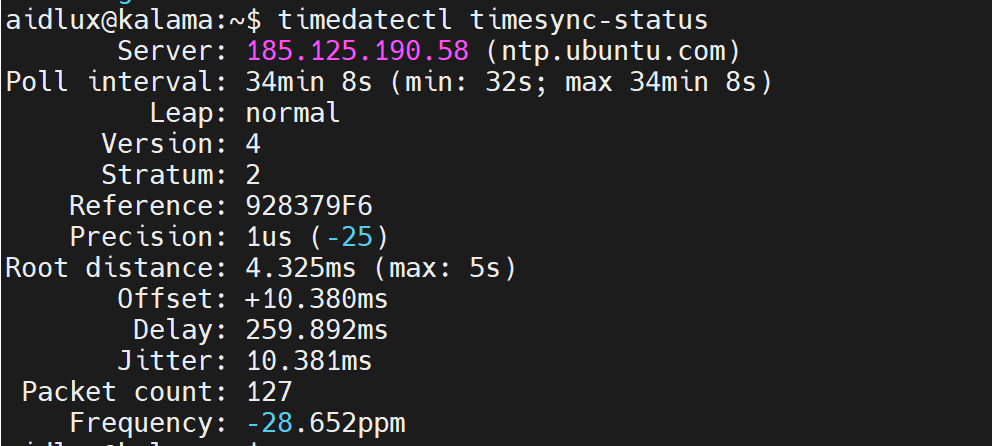
Check NTP Server
timedatectl show-timesync | grep Server
Check Synchronization Logs
sudo journalctl -u systemd-timesyncd --no-pager -n 10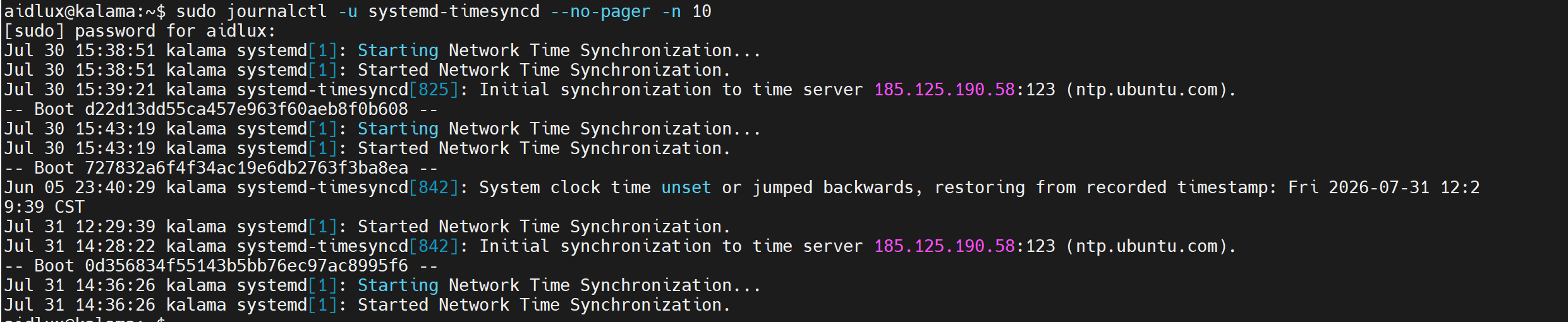
Verification Criteria
| Check Item | Expected Result |
|---|---|
| NTP Server | ntp.ubuntu.com or a public address |
| Packet count | > 0 |
| Log keyword | Initial synchronization to time server |
Scenario 2: Intranet Environment
In an intranet environment, obtain the NTP Server information from the customer administrator, then configure the Client to point to that Server.
Prerequisite: Obtain NTP Server Information
Confirm the following information with the customer administrator (refer to "Information the Customer Needs to Provide" above):
- NTP Server IP: e.g.,
192.168.112.81 - Port Number: default
123
Configure NTP Client
Step 1: Modify the Configuration File
Edit /etc/systemd/timesyncd.conf:
[Time]
NTP=<NTP_Server_IP>
FallbackNTP=ntp.ubuntu.com
RootDistanceMaxSec=10| Parameter | Description |
|---|---|
NTP | The NTP Server address provided by the customer |
FallbackNTP | Optional fallback public NTP; automatically switches when the Server is unavailable |
RootDistanceMaxSec | NTP root distance upper limit; must be set to 10s for Windows Server, can be omitted for Linux Server (default 5s) |
⚠️ Note
If the NTP Server is Windows w32time, its root distance is about 8~10 seconds, exceeding the system default of 5 seconds. You must configure RootDistanceMaxSec=10, otherwise the connection will be rejected with the log message Server has too large root distance. Disconnecting. Linux chronyd/ntpd are not affected by this limitation.
Step 2: Restart the Service
sudo systemctl restart systemd-timesyncdVerify NTP Configuration
Step 1: Confirm Network Connectivity
ping <NTP_Server_IP>Step 2: Manually Query the NTP Server
sudo ntpdate -q <NTP_Server_IP>
It should normally return the Server's current time.
Step 3: Check Synchronization Status
timedatectl timesync-status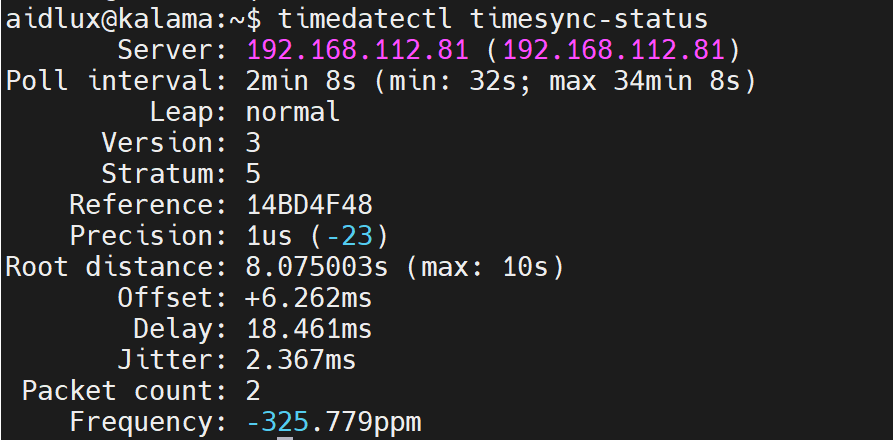
| Check Item | Expected Result |
|---|---|
| Server | The customer-provided NTP Server IP |
| Packet count | > 0 |
| Root distance | ...s (max: 10s) |
Step 4: Check Synchronization Logs
sudo journalctl -u systemd-timesyncd --no-pager -n 5Expected log output:
Initial synchronization to time server <NTP_Server_IP>:123 (<NTP_Server_IP>)
Step 5: Modify Time to Verify Synchronization
💡 Tip
This step is only for second-level offset testing. It is not recommended to set a large time difference.
# Record the current time
date "+%Y-%m-%d %H:%M:%S"

# Offset by 1 hour
sudo date -s "$(date -d '+1 hour' '+%Y-%m-%d %H:%M:%S')"

# Wait 10 seconds and check whether it recovers automatically
sleep 10
date "+%Y-%m-%d %H:%M:%S"
timedatectl timesync-status | grep -E "Packet|Offset"
⚠️ Note
systemd-timesyncd only automatically corrects second-level offsets. If the Client time differs too much from the Server (e.g., by days or years), the synchronization service will refuse to sync due to the security protection mechanism. In that case, manually run sudo ntpdate -s <Server IP> to recover.
Appendix: NTP Server Configuration Reference (For Reference Only)
The following Server-side configuration examples are outside the configuration responsibility scope of this document and are provided only for the customer environment administrator's reference.
Windows 11 Example (Using w32time)
Enable NTP Server
Open PowerShell as administrator and run the following commands in sequence:
# Enable NTP Server
Set-ItemProperty -Path "HKLM:\SYSTEM\CurrentControlSet\Services\W32Time\TimeProviders\NtpServer" -Name "Enabled" -Value 1

# Set as a reliable time source
Set-ItemProperty -Path "HKLM:\SYSTEM\CurrentControlSet\Services\W32Time\Config" -Name "AnnounceFlags" -Value 5

# Allow UDP 123 port through the firewall
New-NetFirewallRule -Name "NTP Server" -DisplayName "NTP Server (UDP 123)" -Protocol UDP -LocalPort 123 -Action Allow -Profile Any

# Restart the time service
Restart-Service w32time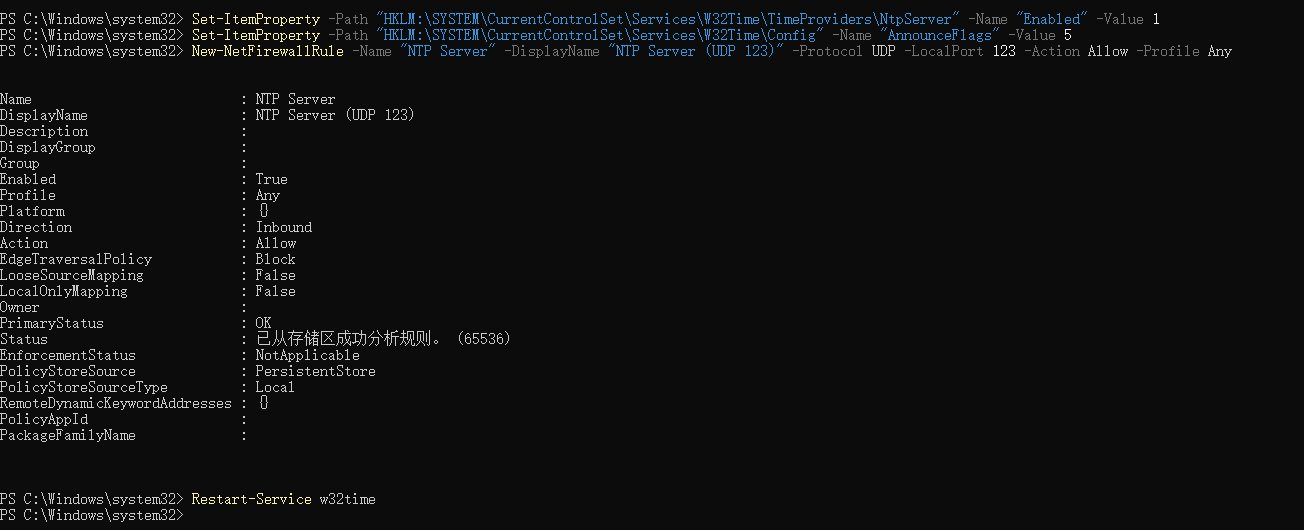
Verify Server Status
# Ensure Windows' own time is accurate
w32tm /resync

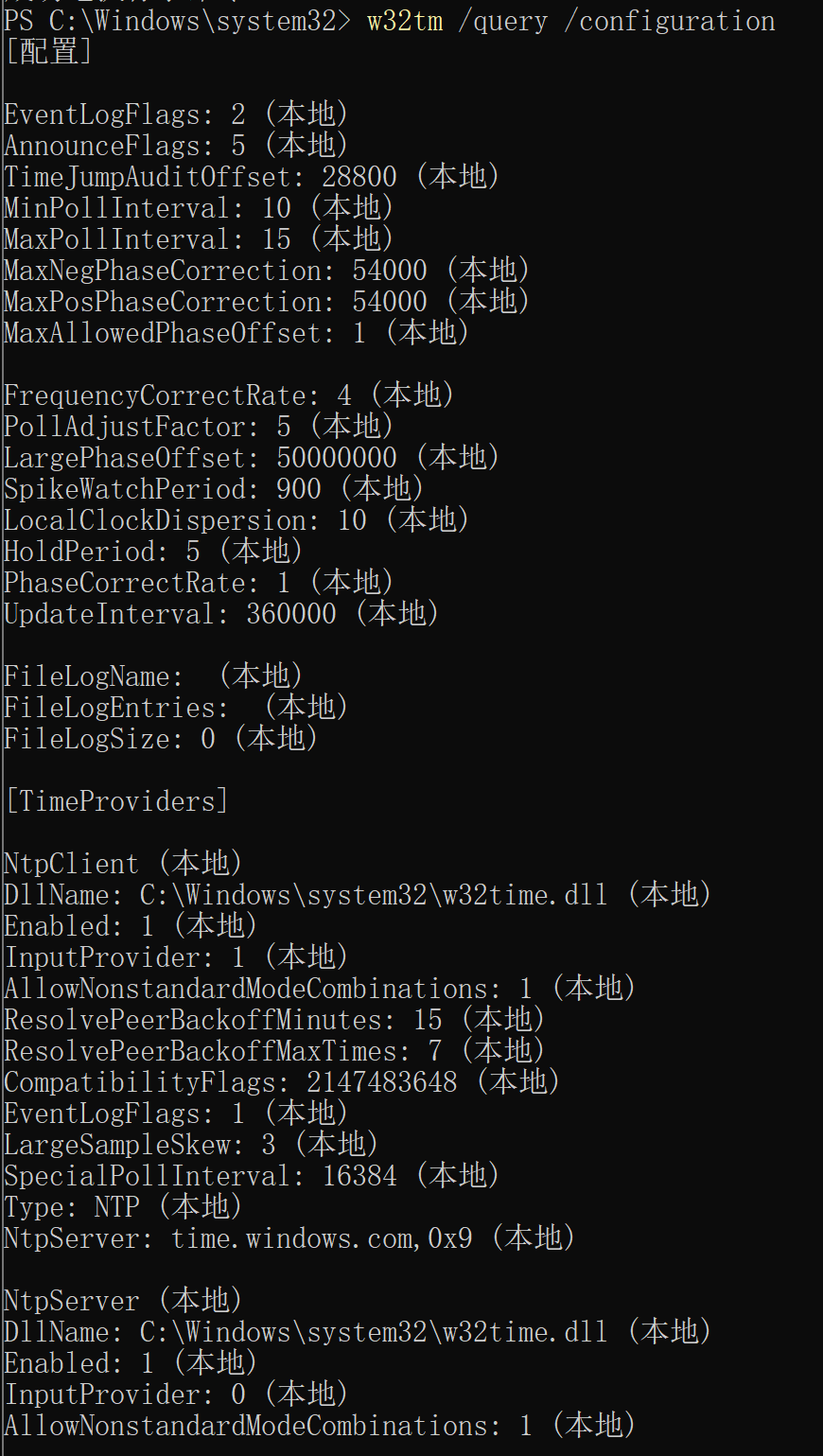
# View configuration status
w32tm /query /configuration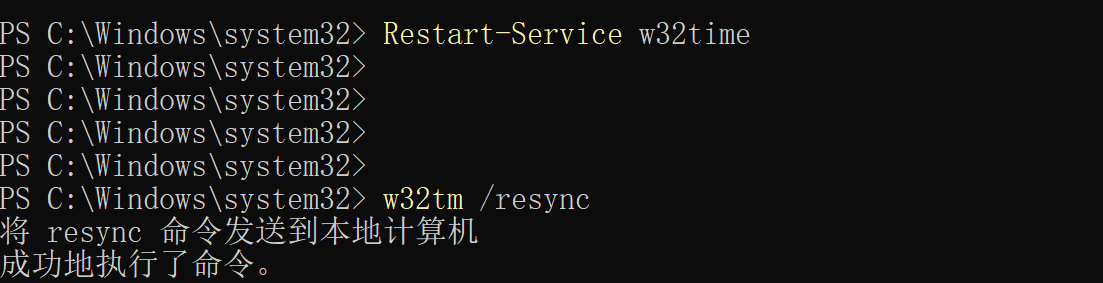
Linux Example (Ubuntu 24.04, Using chronyd)
Install chrony
sudo apt update && sudo apt install chrony -yConfigure NTP Server
Ubuntu 24.04 has upstream time sources configured by default. You only need to append two lines to the end of /etc/chrony/chrony.conf to enable the Server:
sudo tee -a /etc/chrony/chrony.conf << 'EOF'
allow 192.168.0.0/16
local stratum 10
EOF| Parameter | Description |
|---|---|
allow | Allow clients on the specified network segment to sync; must be configured, otherwise UDP 123 port is not listened on |
local stratum 10 | Fallback time source when upstream is unreachable |
Allow Through Firewall
sudo ufw allow 123/udpStart the Service
sudo systemctl enable chrony
sudo systemctl restart chrony
Verify Server Status
# View time source synchronization status
chronyc sources -v

# View NTP service statistics
chronyc tracking

# Confirm UDP 123 port is listening
sudo ss -uln | grep 123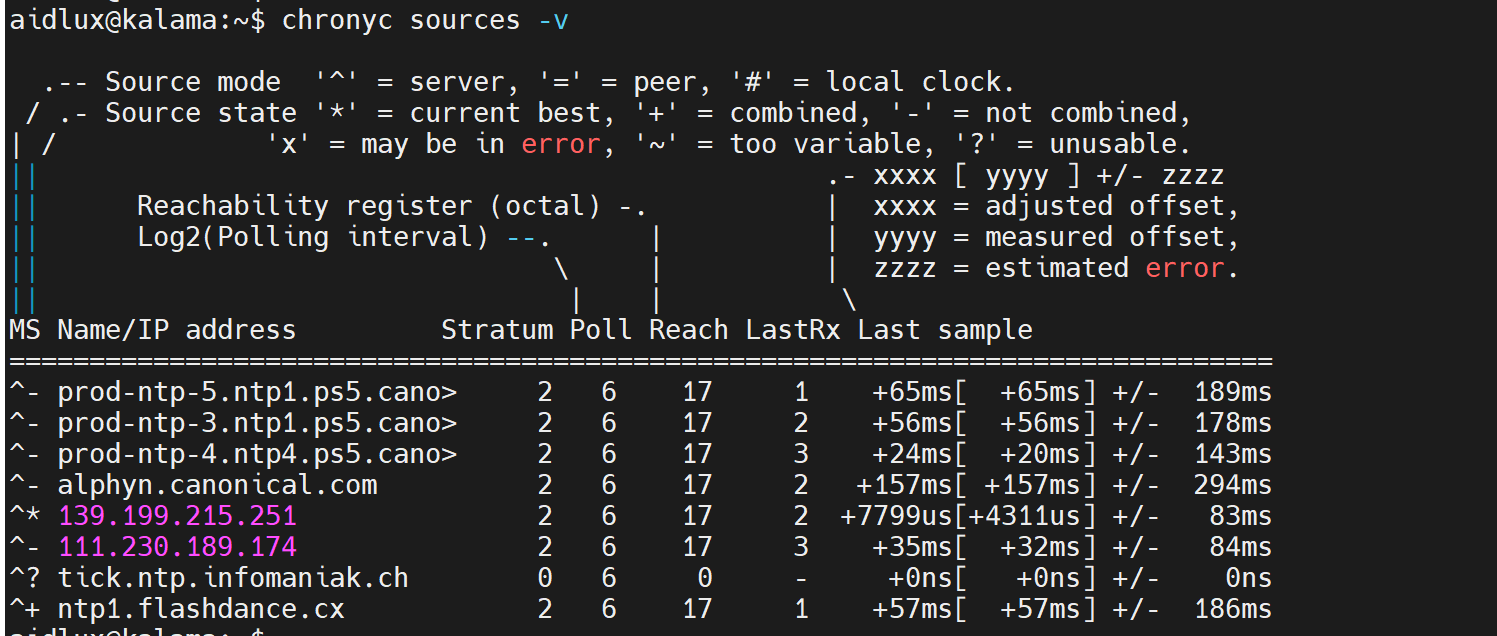
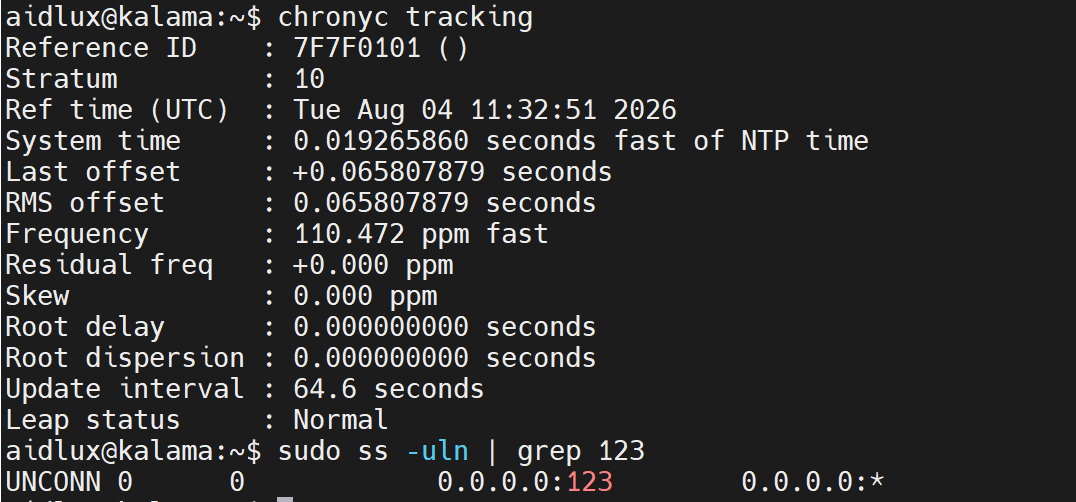
Example expected output:
$ chronyc tracking
Reference ID    : 7F5D2E3C (ntp.aliyun.com)
Stratum         : 3
Ref time (UTC)  : Sun Aug  3 06:30:00 2026
System time     : 0.000012345 seconds slow of NTP time
Leap status     : Normal
Recommended solution: For Linux environments, it is recommended to use
chronydorntpd, which offer more flexible configuration and better compatibility.
Notes
| Item | Description |
|---|---|
| NTP Server responsibility | The Server side is maintained by the customer environment administrator; the Client side only needs its IP and port |
| RootDistanceMaxSec | When connecting to Servers such as Windows w32time, must be set to ≥ 9s (10s recommended) |
| Firewall | The Server side must allow inbound UDP 123 traffic |
| Network type | Windows Server is recommended to be set to "Private network" |
| Large offset synchronization | When the time difference between Server and Client is too large, run sudo ntpdate -s to sync manually |
| Polling frequency | Dynamically adaptive, initially 32 seconds, up to 34 minutes when stable |
Troubleshooting
| Symptom | Cause | Solution |
|---|---|---|
Timed out waiting for reply | Network unreachable or firewall blocking | ping the Server address, and check the port with nc -u -zv <IP> 123 |
too large root distance. Disconnecting | RootDistanceMaxSec not configured or too small | Set to 10s and restart the service |
Packet count: 0 | Service just started or Server unreachable | Wait 30 seconds and re-check; confirm the Server is online |
| Large offset time not recovered automatically | timesyncd security protection triggered | Run sudo ntpdate -s <Server IP> to recover manually |
no server suitable for synchronization | Server time abnormal or NTP service not started | Confirm the Server-side NTP daemon is running normally |