Remote Desktop
Remote Access to the Android or AidLux Main Desktop via Screen Copy Software
Please refer to Screen Copy Login in the hardware guide for remote login.
Android System: VNC Connection to Gnome Desktop
Web Desktop Login
Please refer to Web Login in the hardware guide to log in to the AidLux integrated system Web desktop.
Ubuntu Desktop Installation
Ubuntu Desktop is based on the Linux kernel, providing users with a stable, efficient, and secure desktop environment. After installation, it can be used to run robot-related simulation software.
Note
Ubuntu Desktop is pre-installed on some devices by default. In such cases, there is no need to download and install it again. You can directly click the desktop icon to start the service, then connect to this desktop via VNC.
- Click the App Center button at the bottom of the desktop and select Robotics.
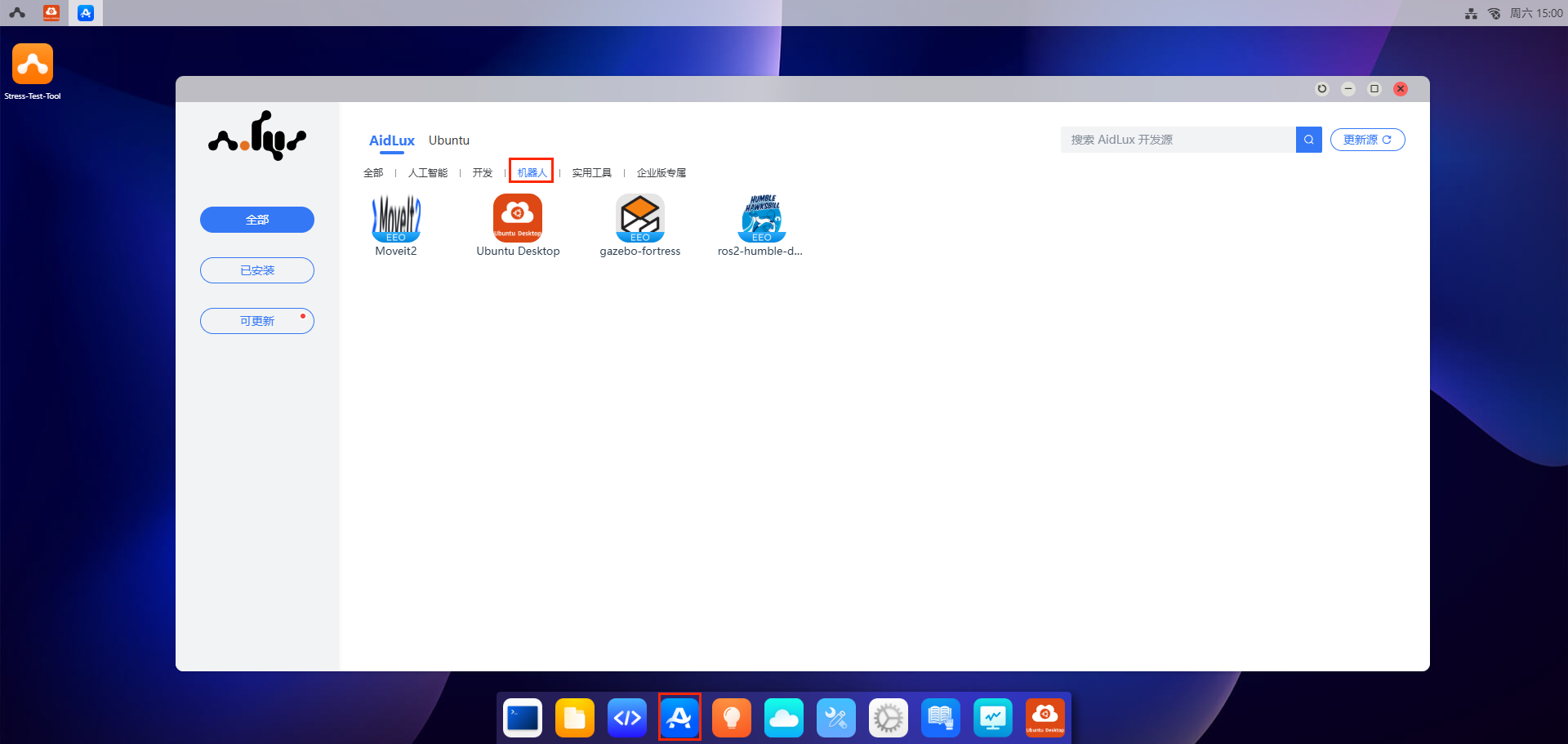
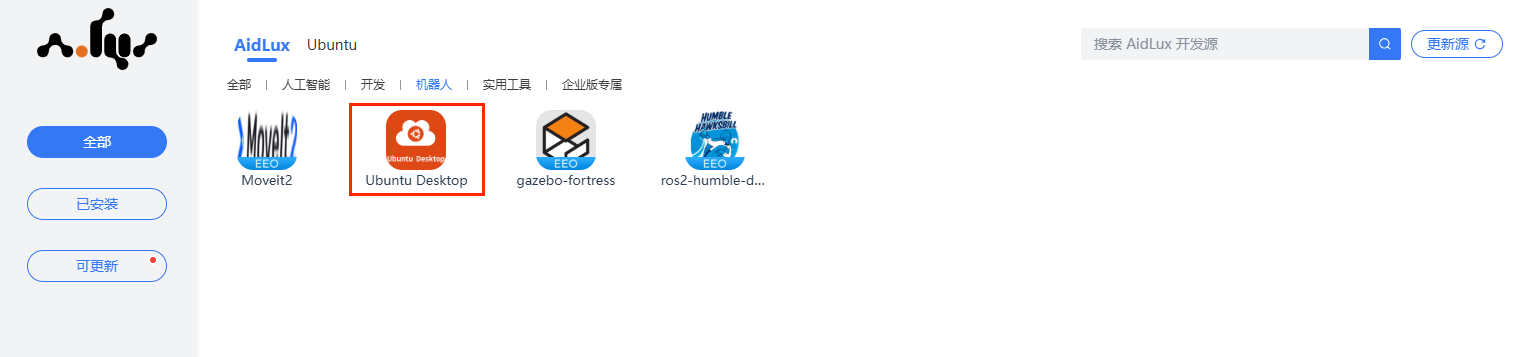
- After entering the Robotics page, click the Ubuntu Desktop icon to navigate to the installation page.
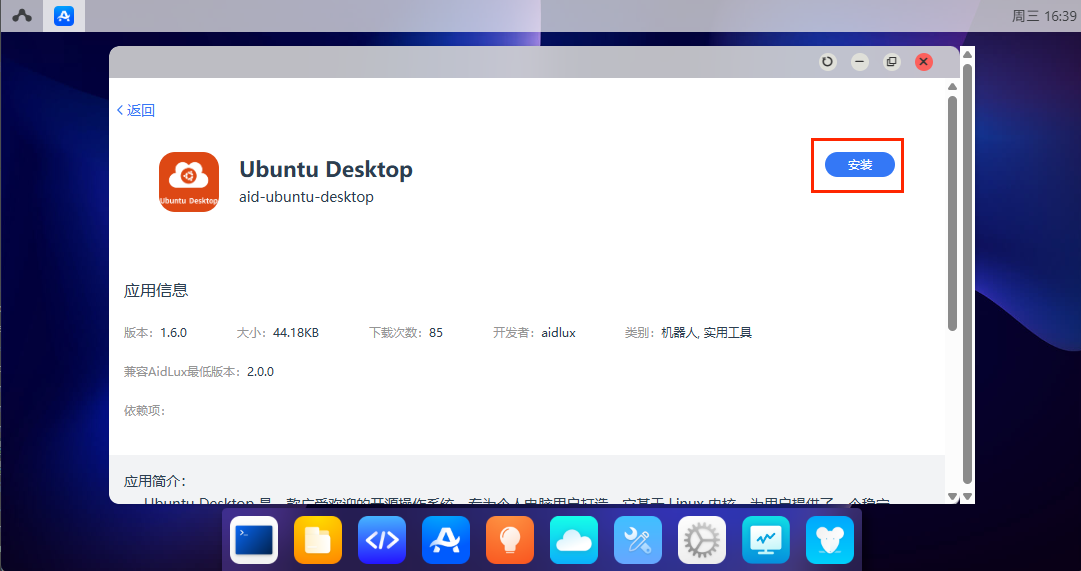
- Click the Install button, enter the AidLux password:
aidlux, and wait for the installation to complete.
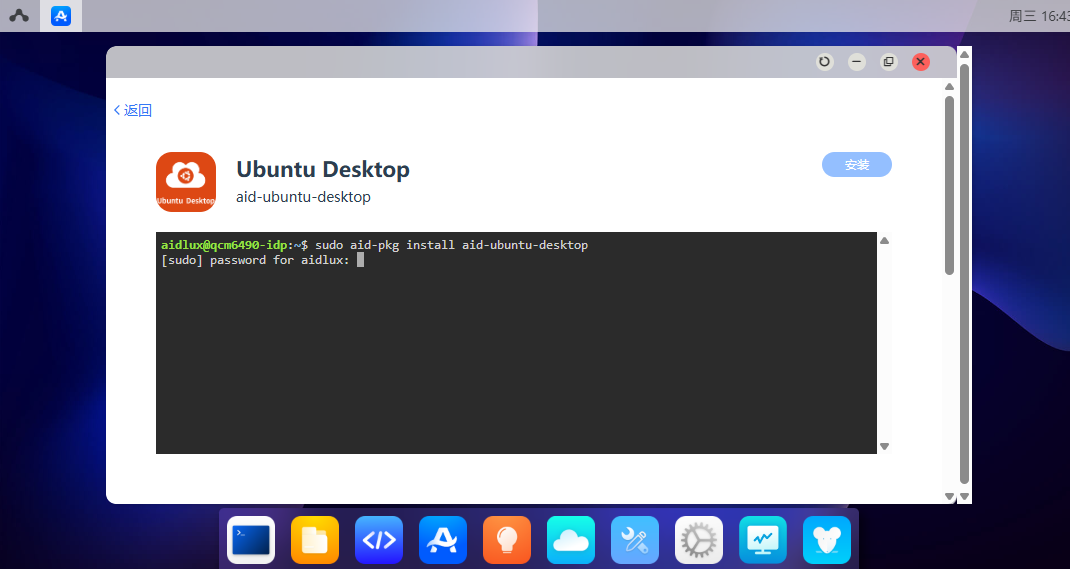
Connect to Ubuntu Desktop (Gnome Desktop) via VNC
VNC Tool Download
You can download the TightVNC tool from the link below, or use other VNC tools for connection.
Download link: https://www.tightvnc.com/download.php
- Select and download the appropriate version according to your computer's operating system, then proceed with the installation.
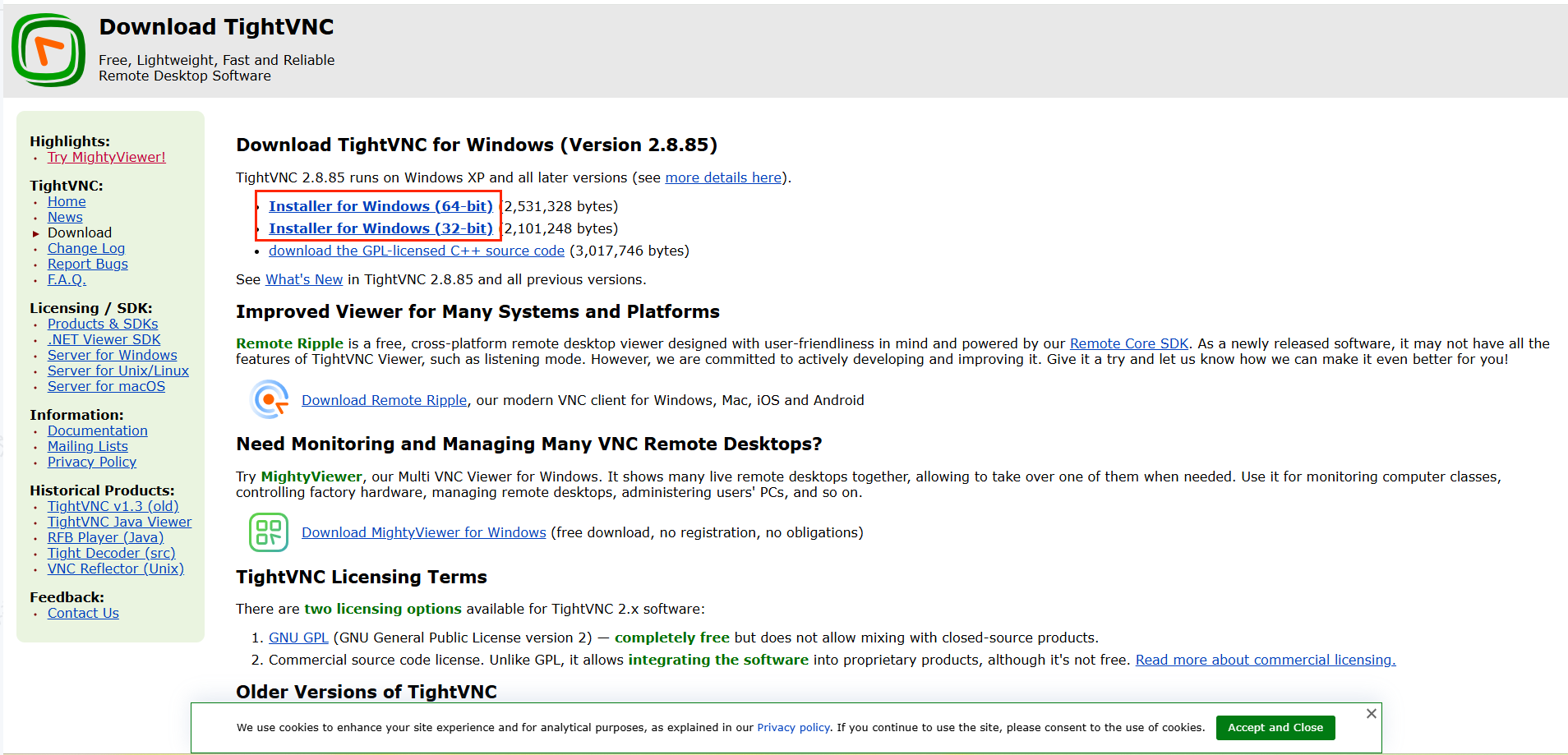
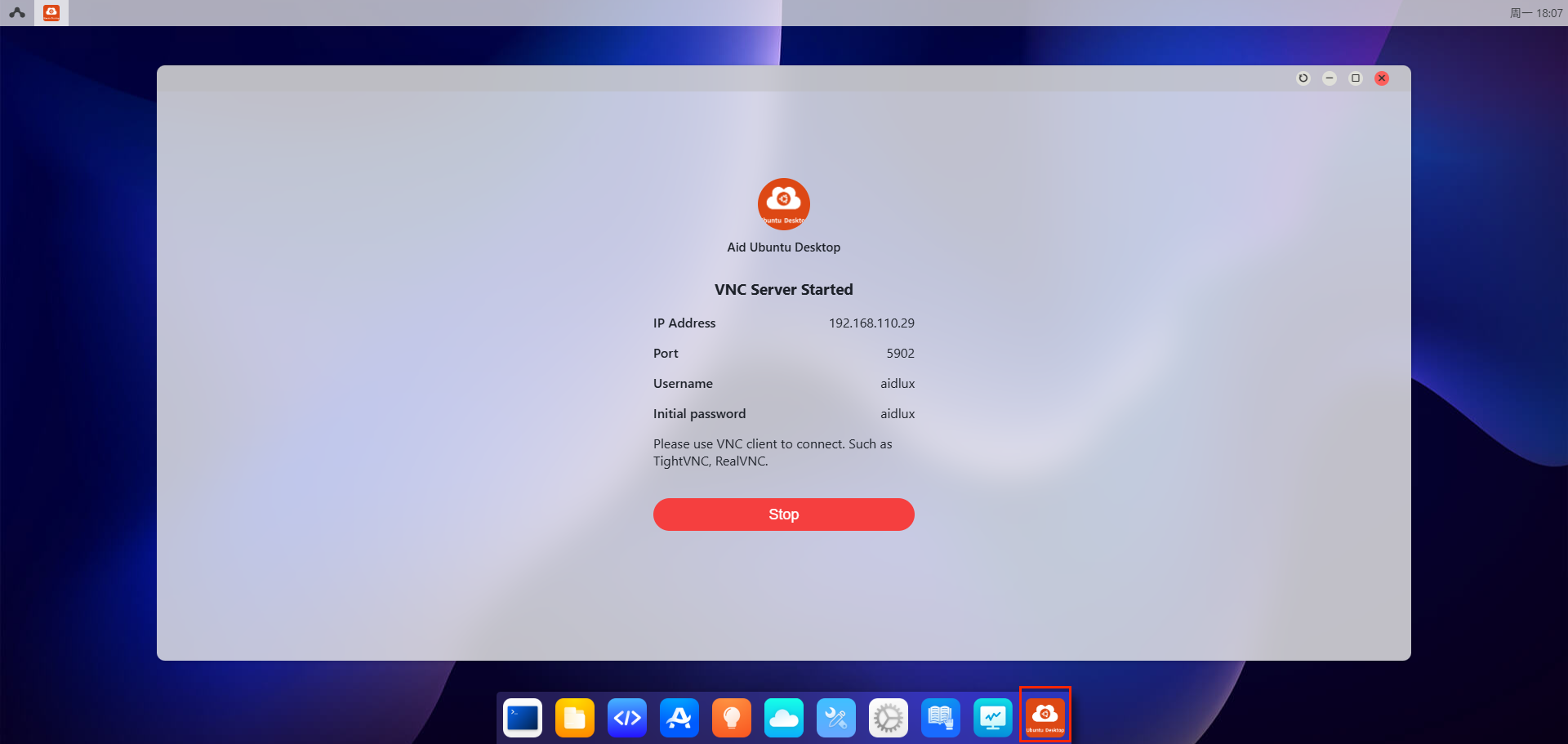
Enable VNC Server on Ubuntu Desktop
- Click the Ubuntu Desktop icon on the desktop to start the server service.
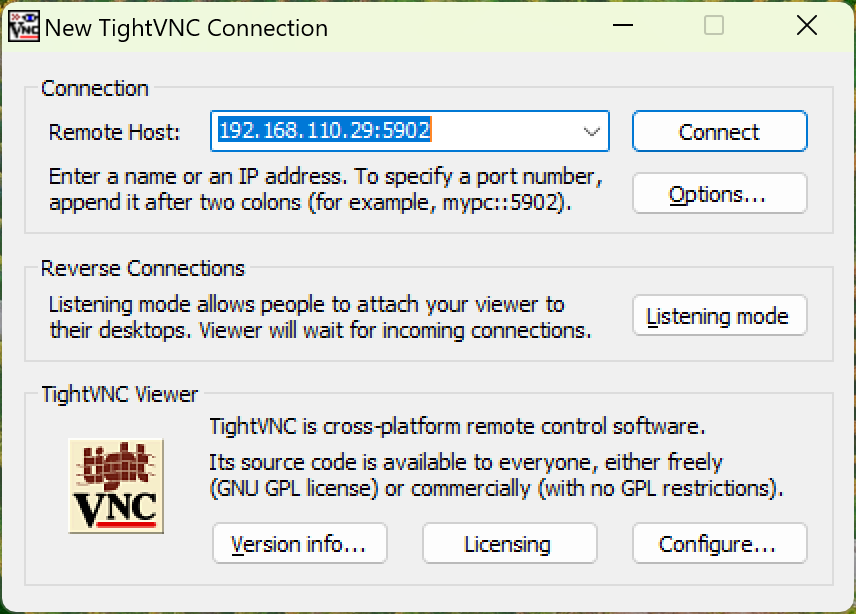
Open VNC Tool and Connect to Gnome Desktop
- Launch TightVNC, enter the device address
IP:5902, and click Connect to establish the connection.
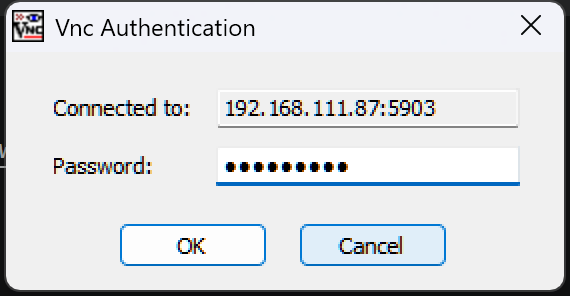
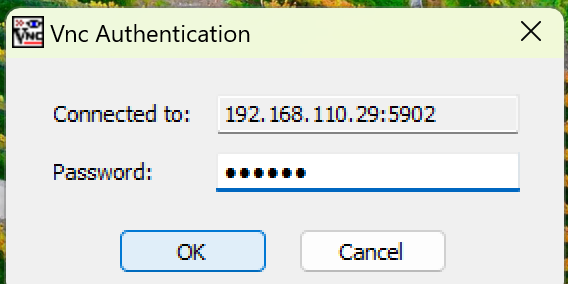
- After redirection, you will be prompted to enter the password:
aidlux. Click the OK button to complete the connection.
Ubuntu 24.04 System: VNC Connection to Gnome Desktop
Start VNC Service
sudo systemctl start vnc vnc-stConnect to Ubuntu 24.04 Remote Desktop via VNC
VNC Tool Download
You can download the TightVNC tool from the link below, or use other VNC tools for connection.
Download link: https://www.tightvnc.com/download.php
- Select and download the appropriate version according to your computer's operating system, then proceed with the installation.
Open VNC Tool and Connect to Gnome Desktop
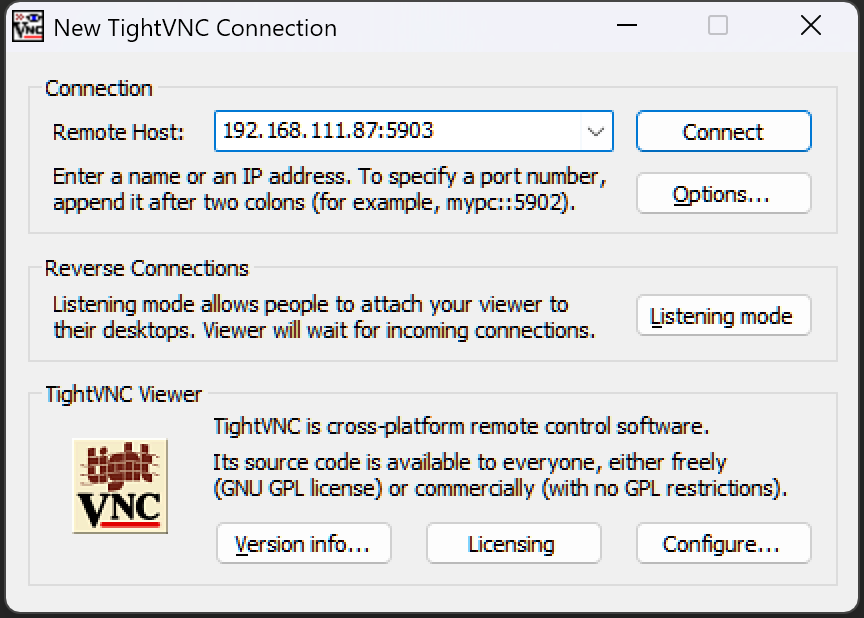
- Launch TightVNC, enter the device address
IP:5903, and click Connect to establish the connection.
- After redirection, you will be prompted to enter the password:
aidlux123. Click the OK button to complete the connection.