Browser Login
This article describes how to log in to the Rhino Pi IQ9N Ubuntu desktop environment through a browser, without installing any client software.
Overview
The Ubuntu system on the Rhino Pi IQ9N includes a built-in Web remote desktop service, which allows you to remotely access the device desktop environment (AidLux desktop) through a browser.
Prerequisites
- The Rhino Pi IQ9N is powered on and connected to the network (wired or Wi-Fi)
- The device IP address has been obtained
- The PC and the device are on the same LAN
1. Obtaining the Device IP Address
After the device is connected to the network, you first need to confirm its IP address; see IP Address Confirmation.
You can also check it over ADB:
adb shell ip addr show2. Logging In Through a Browser
In the PC browser address bar, enter http://<device IP address>:8000, where 8000 is the device's default Web port, for example http://192.168.1.100:8000.
The AidLux Web desktop login page appears:
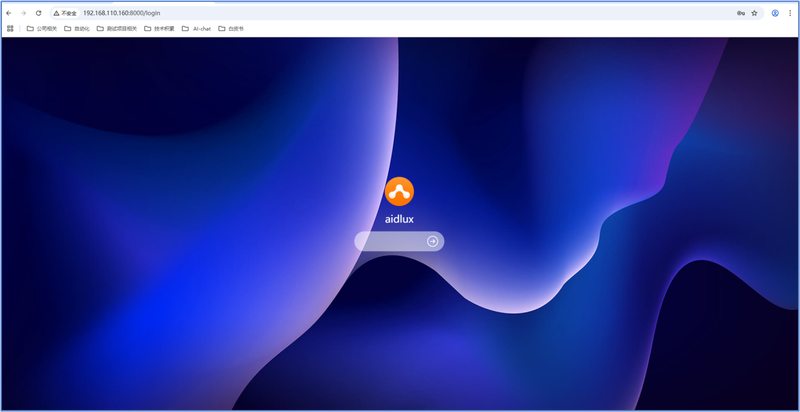
Enter the login credentials:
| Item | Default Value |
|---|---|
| Username | aidlux |
| Password | aidlux |
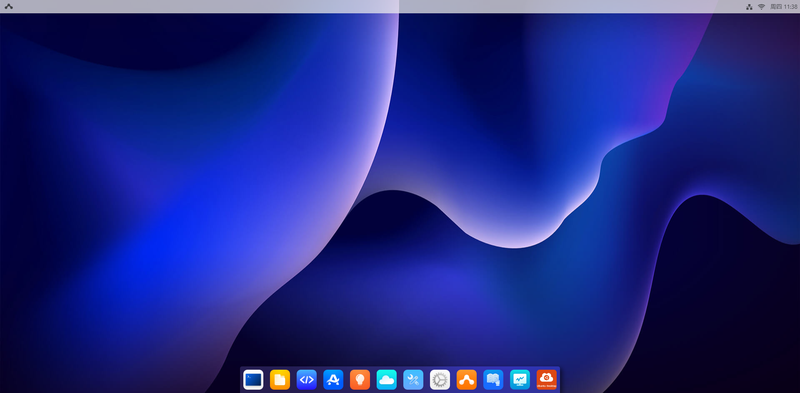
After a successful login, you can operate the full AidLux desktop environment in the browser:
Tip
The Web desktop is provided by aid-desktop.service on the device, which listens on port 8000 by default (http://<device IP>:8000 returns 200 in testing).
If you cannot access it, run the following commands in the device terminal to troubleshoot:
systemctl status aid-desktop
ss -tlnp | grep 8000
Also check:
- Whether the device and the PC are on the same subnet
- Whether a firewall is blocking port
8000 - Whether the device IP has changed
FAQ
- The browser cannot access the page: confirm that the PC and the device are on the same subnet and that the device firewall is not blocking port
8000. - Login fails: confirm that both the username and password are
aidlux; if they have been changed, use the updated credentials.