ADB Login
Prerequisites
You will need to prepare the following hardware:
- Board: Rhino Pi X1
- Power: DC 12V 5A power adapter
- Input: USB Type-A to Type-C cable
Installing ADB
Visit the ADB Download page, select your platform, and download the ADB software.
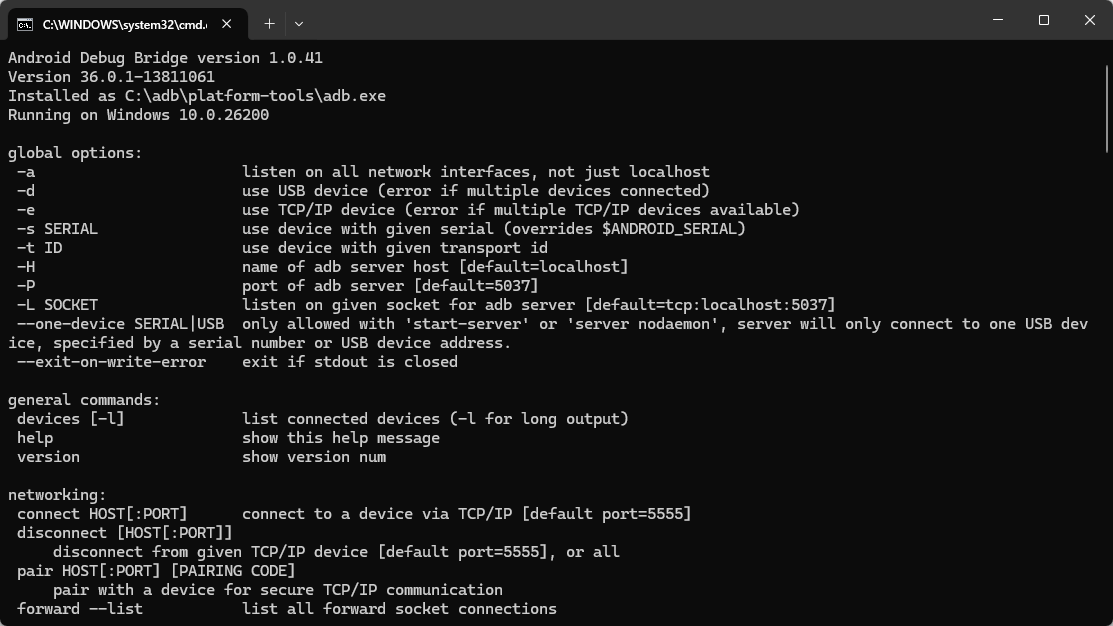
Open a terminal in the ADB folder. If running adb displays ADB command help, the environment is set up correctly.
Booting the Board
The board has Ubuntu 22.04 installed. After connecting the 12V power adapter, the board will automatically boot.
- Boot process: The power indicator LED stays solid red
- System ready: The RGB LED stays solid green and the fan starts spinning, indicating boot is complete
Connecting the Device
Connect the USB Type-A to Type-C cable: Type-A to your Windows PC USB port, Type-C to the board's Type-C port.
Accessing the System via ADB
After booting the board, you can log into the Ubuntu system using ADB:
shell
adb shellTip
For more ADB usage, see ADB Basic Usage
Using the System
Once the system has started successfully, you can use Ubuntu 22.04 on Rhino Pi X1. See System Usage