File Transfer
This article describes common methods for transferring files between a PC and the Rhino Pi IQ9N.
Method Comparison
| Method | Use Case | Prerequisites |
|---|---|---|
| ADB | Direct USB connection, fast | ADB tools installed |
| SCP | Transfer over the network, supports remote access | SSH service enabled on the device |
| AidLux File Browser | Upload and download through the Web interface | Web remote desktop enabled on the device |
| Samba / NFS | Mount as a network share for long-term use | You must install and configure the sharing service yourself (Samba / NFS server is not preinstalled) |
Transferring with ADB
Push a file to the device:
bash
adb push ./test.bin /home/aidlux/Pull a file from the device:
bash
adb pull /home/aidlux/test.bin ./Transferring with SCP
Push a file from the PC to the device:
bash
scp ./test.bin aidlux@<device IP address>:/home/aidlux/Pull a file from the device to the PC:
bash
scp aidlux@<device IP address>:/home/aidlux/test.bin ./Add the -r option when transferring an entire directory.
Transferring with the AidLux File Browser
Access the AidLux interface through a browser; for the login method, see Web Login.
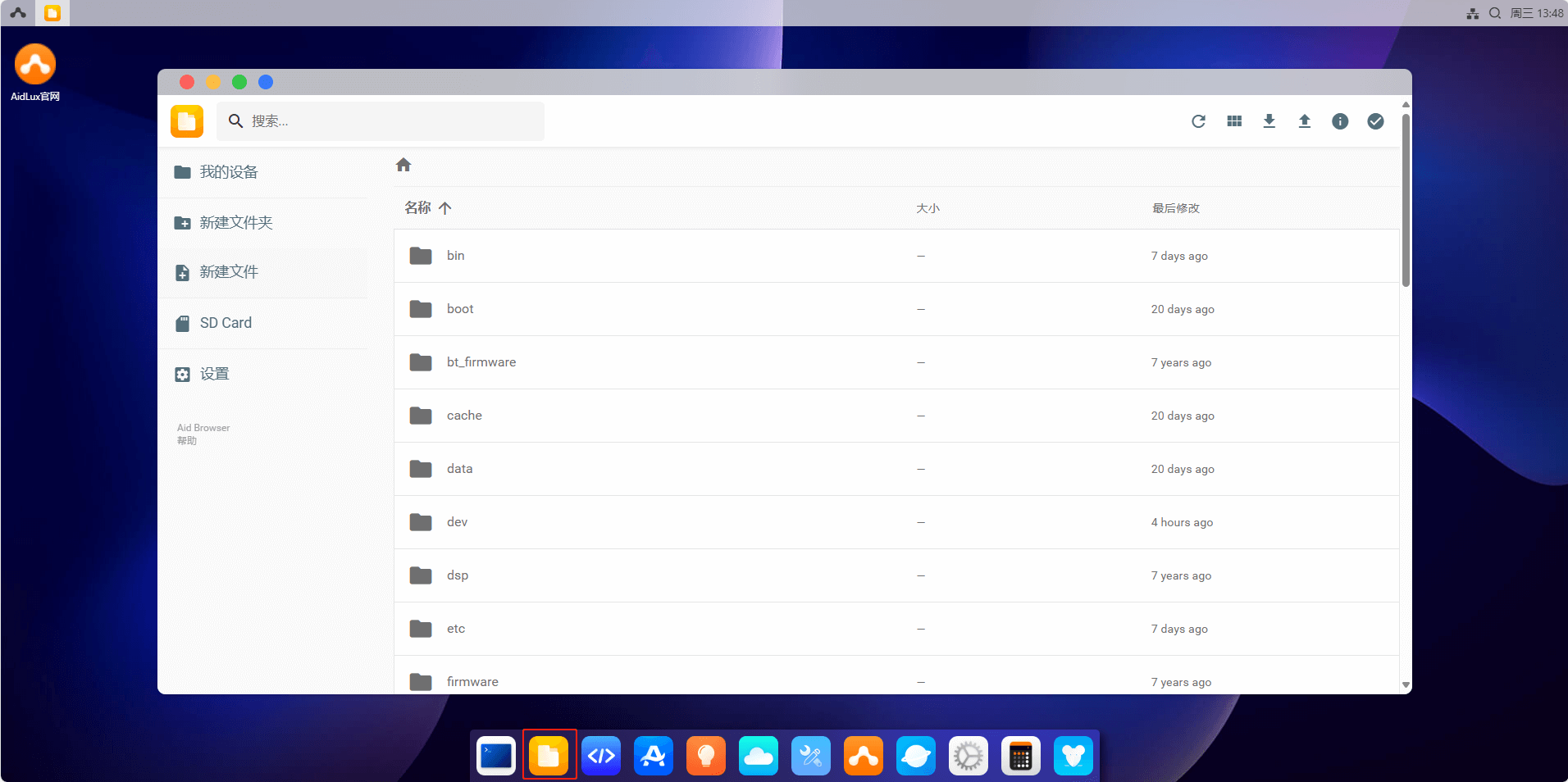
Click the file browser icon:
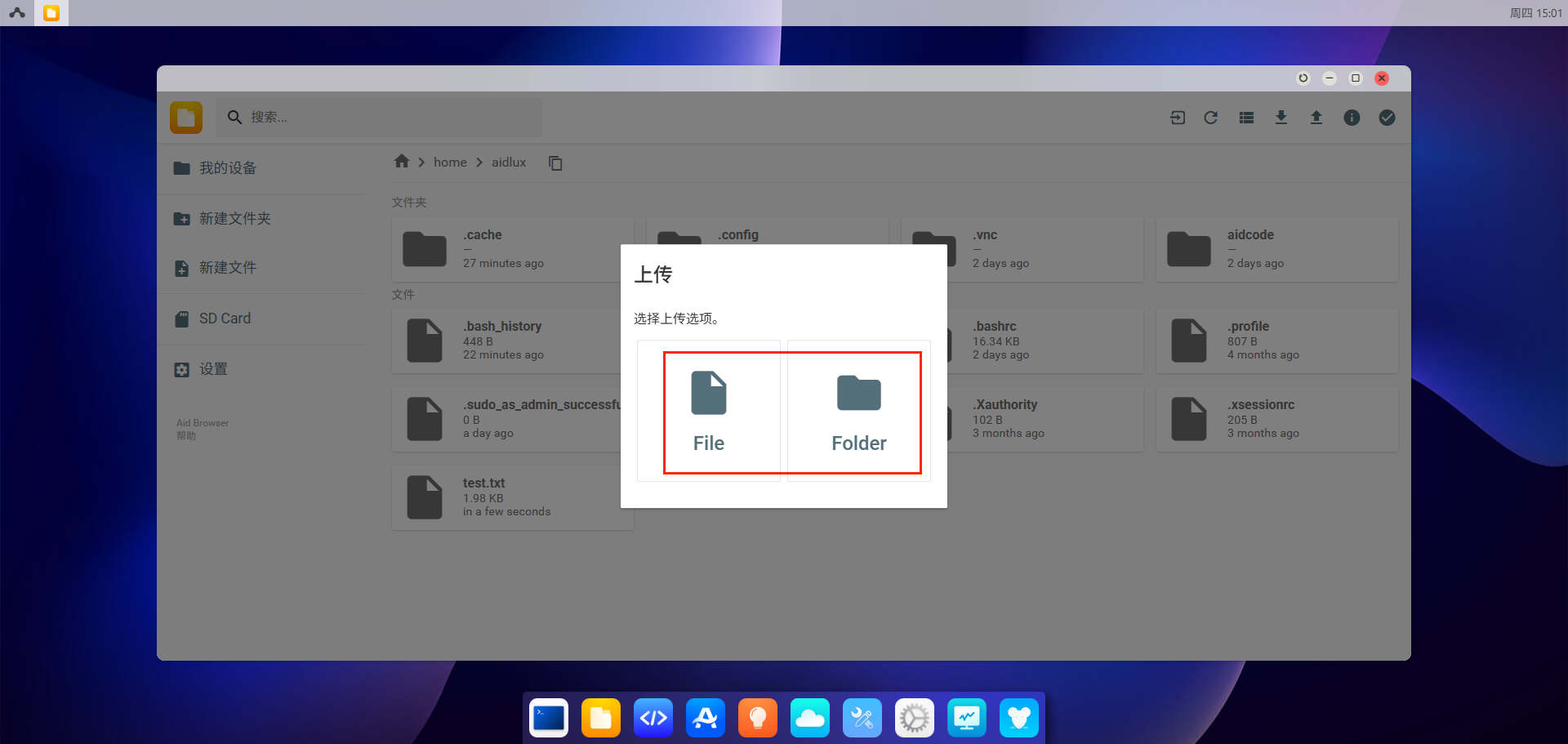
Click the upload button in the upper right corner to upload a file or directory to the /home/aidlux directory:
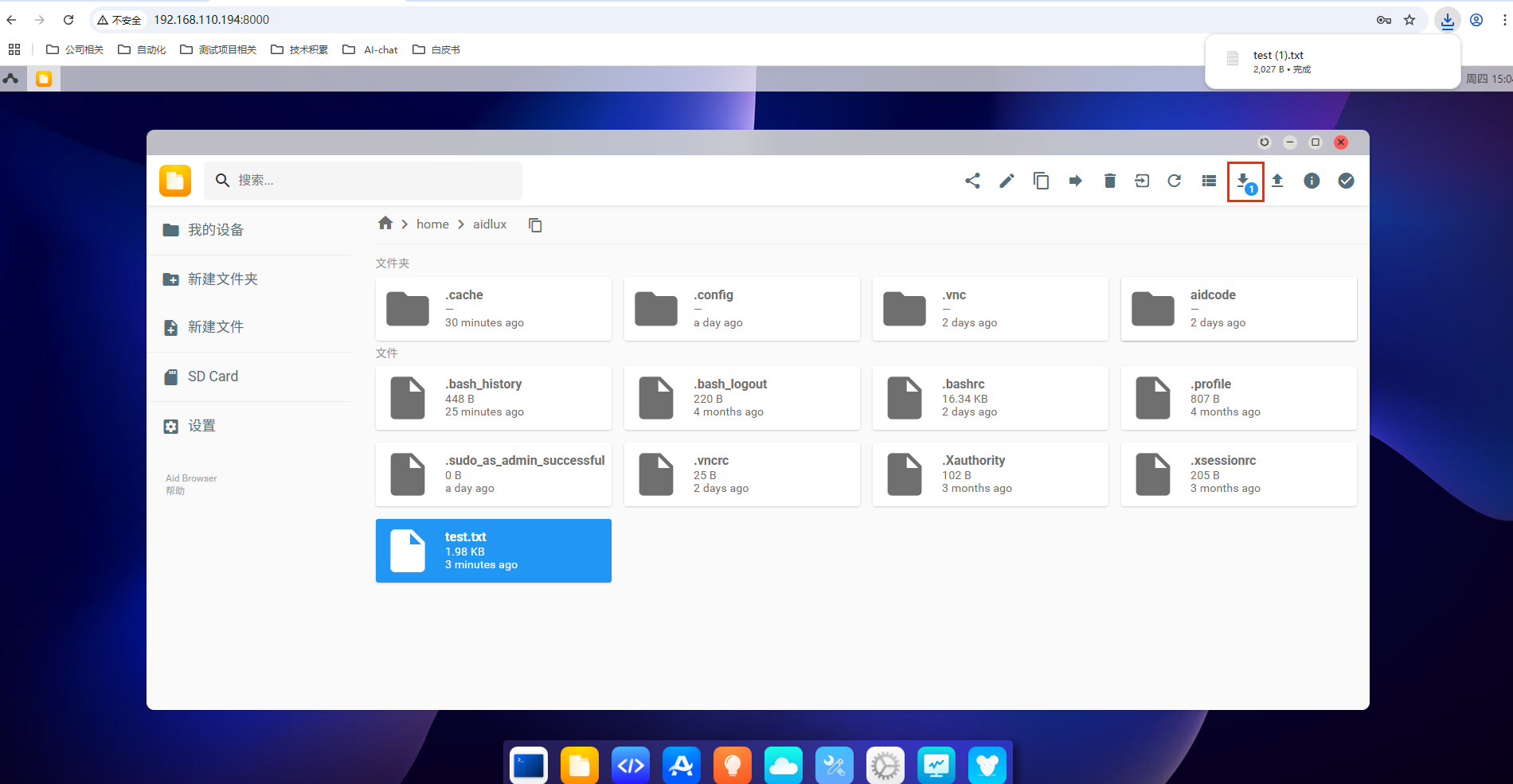
Click the download button in the upper right corner to download a file or directory from /home/aidlux to your local machine:
Notes
- When transferring large files over SCP, use a stable network environment.
- When transferring through the AidLux file browser, keep the browser page and the device network stable; avoid refreshing or closing midway.