SSH Remote Login
Overview
SSH (Secure Shell) is a secure way to remotely log in to and manage the Rhino Pi X1R.
Prerequisites
- The Rhino Pi X1R is connected to the network
- Obtain the device's IP address
- An SSH client is installed on the computer
Obtaining the Device IP Address
Refer to the method for obtaining the IP address in Browser Remote Login.
Logging in via SSH
Windows
Use PowerShell, CMD, or a third-party tool (such as PuTTY or MobaXterm):
bash
# Command line
ssh aidlux@<device-ip-address>

# Example
ssh aidlux@192.168.110.166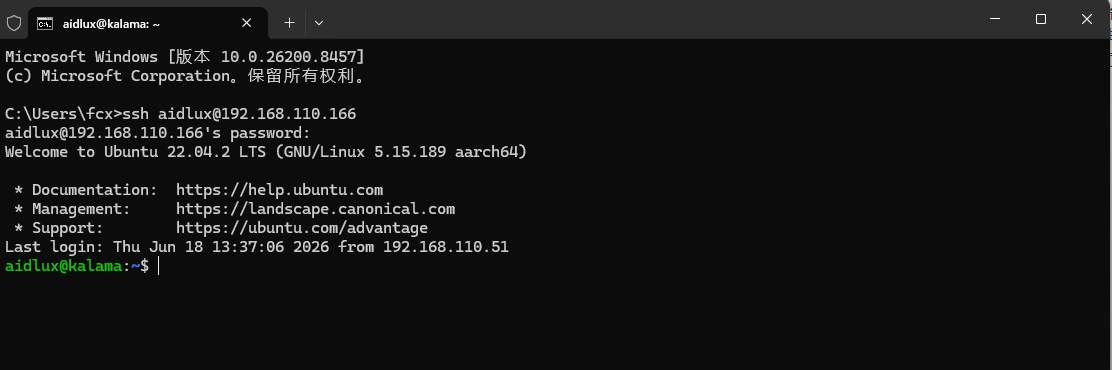
The first connection will prompt for host fingerprint confirmation. Type yes and press Enter; then enter the login password when prompted: aidlux to access the system.
Linux / macOS
bash
ssh aidlux@<device-ip-address>Default Login Credentials
| Image Type | Username | Default Password |
|---|---|---|
| APLUX Full Image | aidlux | aidlux |
Note
If the SSH connection is rejected, first confirm that the device and the computer can reach each other over the network and that the IP addresses can ping each other.