ADB Login
Prerequisites
Developers need to prepare the following hardware devices in advance:
- Main board: Rhino Pi-A1
- Power supply: DC12V/24V 3A power adapter
- Input device: USB TYPE-A to TYPE-C cable
ADB Software Installation
Visit ADB Download and select the corresponding platform to download the ADB software.
Open a Terminal in the ADB folder, type adb, and if the ADB command help is displayed, the environment is ready.
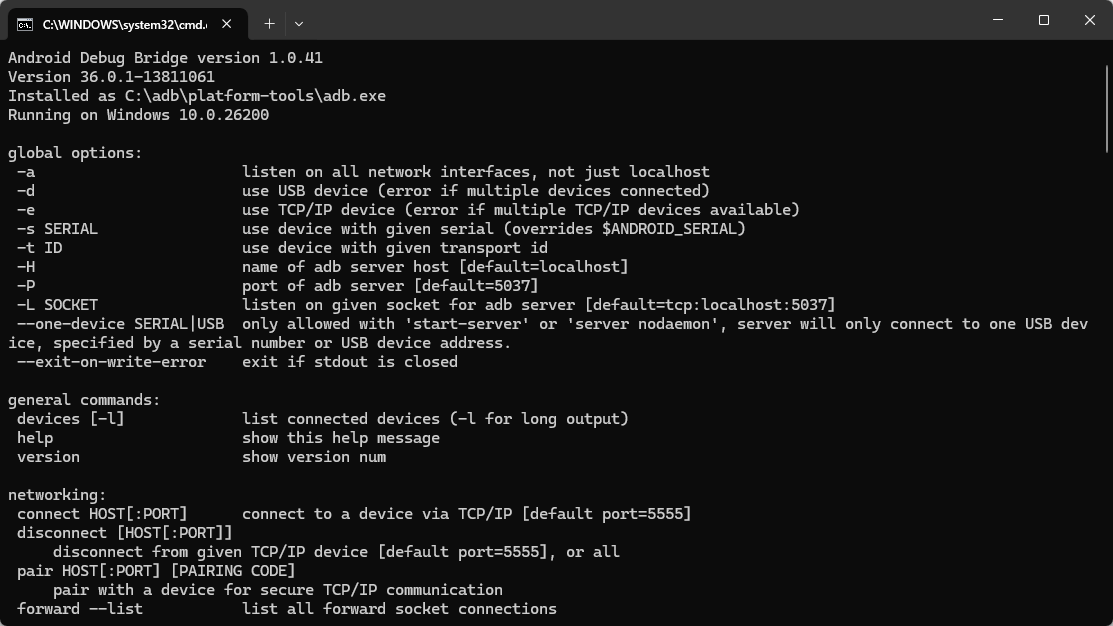
Starting the Board
The board comes with the Ubuntu system pre-installed. After powering it with a 12V/24V 3A power adapter, the board will boot the system automatically.
- Boot process: The RGB light stays solid green and blinks.
- Use a USB TYPE-A to TYPE-C cable, connect the TYPE-A end to a USB port of the Windows computer, and the TYPE-C end to the Type-C port of the board.
- System boot complete: The RGB light stays solid green and stops blinking, indicating that boot is complete.
Connecting the Device
Use a USB TYPE-A to TYPE-C cable, connect the TYPE-A end to a USB port of the Windows computer, and the TYPE-C end to the Type-C port of the board.
Accessing the System via ADB
After starting the board, developers can log in to the Ubuntu system through the ADB tool with the following command:
adb shellNote
For more ADB usage, please refer to ADB Basic Usage.
Using the System
After the system boots successfully, developers can use the Ubuntu 24.04 system on the Rhino Pi-A1. Please refer to System Usage