NTP 配置
NTP 简介
NTP(Network Time Protocol,网络时间协议)用于在局域网内同步多台设备的系统时钟。设备时间不一致会导致日志时间戳混乱、TLS 证书校验失败、文件时间戳错乱等问题。
职责范围
| 角色 | 负责方 | 说明 |
|---|---|---|
| NTP Server(时间源) | 客户环境管理员 | 提供标准时间,不在本文档配置职责内 |
| NTP Client(智能相机 / 开发板) | 本文档 | 从客户 NTP Server 同步时间 |
本文档聚焦于 Client 端的配置。对于 Server 端,仅列出技术要求供客户管理员参考,并附一份配置示例(仅供参考)。
涉及组件
| 组件 | 说明 |
|---|---|
| NTP Server | 客户环境中提供时间源的节点,需运行 ntpd、chronyd 等 |
| NTP Client | 本文档配置目标,Ubuntu 开发板,使用内置的 systemd-timesyncd |
| UDP 123 端口 | NTP 协议默认端口,Server 端必须监听且防火墙放行 |
systemd-timesyncd | Ubuntu 内置的轻量 SNTP 客户端,仅用于同步,不作为 Server |
两种场景
| 场景 | 适用条件 | 说明 |
|---|---|---|
| 场景一:有公网 | 开发板可直接访问互联网 | 使用公网 NTP 服务器,无需客户配合 |
| 场景二:内网环境 | 开发板无法访问公网,仅有局域网 | 需要客户提供内网 NTP Server 信息 |
对 NTP Server 端的要求
以下要求提供给客户环境管理员,用于确认或搭建 NTP Server。满足这些条件后,将必要信息交给本文档的 Client 配置人员即可。
1. NTP 协议支持(RFC 5905)
Server 必须运行标准的 NTP 守护进程。常见方案的适用性如下:
| 方案 | 代表软件 | 是否适合作为 Server |
|---|---|---|
| 经典 NTP | ntpd | ✅ 功能全,兼容性好 |
| 现代轻量级 NTP | chronyd | ✅ 推荐,嵌入式 / 网络不稳定环境下表现更好 |
| 系统自带 | systemd-timesyncd | ❌ 不推荐,它本身是 SNTP 客户端,Server 能力弱,不适合多客户端场景 |
结论:应部署
chronyd或ntpd作为 Server,不要用systemd-timesyncd充当 Server。
2. 端口开放(UDP 123)
NTP 使用 UDP 默认端口 123,Server 端必须:
- 监听 UDP 123 端口
- 防火墙放行 UDP 123 入站流量
3. 时钟源稳定可靠
Server 自身时间必须准确,建议:
- 上游接入公网 NTP(如
ntp.aliyun.com、ntp.ntsc.ac.cn)或 GPS 时钟源 - 若 Server 自身时间不准,同步给 Client 的时间也会错误
4. 协商模式
systemd-timesyncd(Client)使用标准的客户端-服务器(Client-Server)模式查询,Server 无需支持广播、多播或对称密钥认证(除非有特殊安全要求)。
客户需提供的信息
| 信息项 | 说明 | 示例 |
|---|---|---|
| NTP Server IP | Server 的静态 IP 地址 | 192.168.112.81 |
| 端口号 | 默认为 123,非默认需说明 | 123 |
| 网络区域 | 确认 Client 与 Server 在同一局域网或可路由网络内 | — |
场景一:有公网环境
设备已连接外网时,systemd-timesyncd 默认使用 ntp.ubuntu.com 作为时间源,无需额外配置,仅需验证。
查看同步状态
在 Client 端执行:
timedatectl timesync-status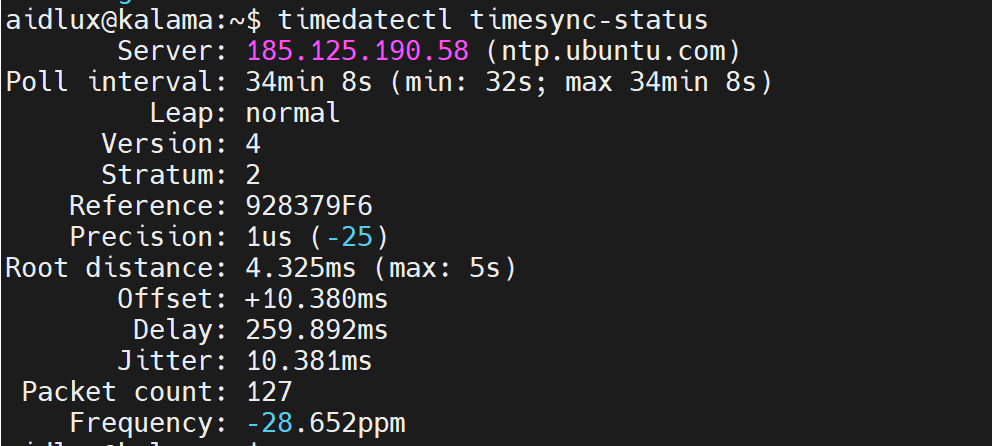
查看 NTP 服务器
timedatectl show-timesync | grep Server
查看同步日志
sudo journalctl -u systemd-timesyncd --no-pager -n 10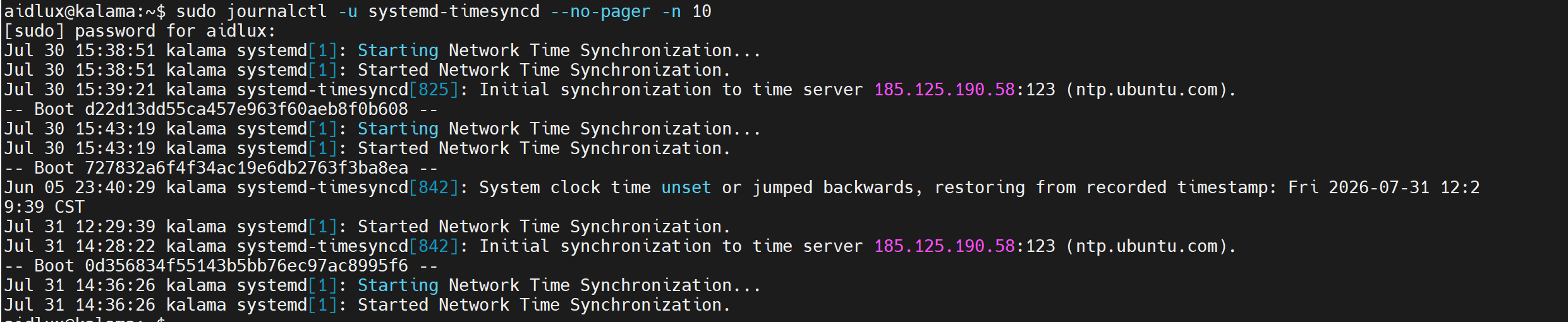
验证通过标准
| 检查项 | 期望结果 |
|---|---|
| NTP Server | ntp.ubuntu.com 或公网地址 |
| Packet count | > 0 |
| 日志关键字 | Initial synchronization to time server |
场景二:内网环境
内网环境下,需从客户管理员处获取 NTP Server 信息,然后在 Client 端配置指向该 Server。
前提:获取 NTP Server 信息
向客户管理员确认以下信息(参考上文“客户需提供的信息”):
- NTP Server IP:例如
192.168.112.81 - 端口号:默认
123
配置 NTP Client
步骤 1:修改配置文件
编辑 /etc/systemd/timesyncd.conf:
[Time]
NTP=<NTP_Server_IP>
FallbackNTP=ntp.ubuntu.com
RootDistanceMaxSec=10| 参数 | 说明 |
|---|---|
NTP | 客户提供的 NTP Server 地址 |
FallbackNTP | 备用公网 NTP(可选),Server 不可用时自动切换 |
RootDistanceMaxSec | NTP 根距离上限,Windows Server 时必须设为 10s,Linux Server 可省略(默认 5s) |
⚠️ 注意
若 NTP Server 为 Windows w32time,其 root distance 约为 8~10 秒,超过系统默认值 5 秒,必须配置 RootDistanceMaxSec=10,否则会被拒绝连接,日志出现 Server has too large root distance. Disconnecting。Linux chronyd/ntpd 不受此限制。
步骤 2:重启服务
sudo systemctl restart systemd-timesyncd验证 NTP 配置
步骤 1:确认网络连通性
ping <NTP_Server_IP>步骤 2:手动查询 NTP Server
sudo ntpdate -q <NTP_Server_IP>
正常应返回 Server 当前时间。
步骤 3:检查同步状态
timedatectl timesync-status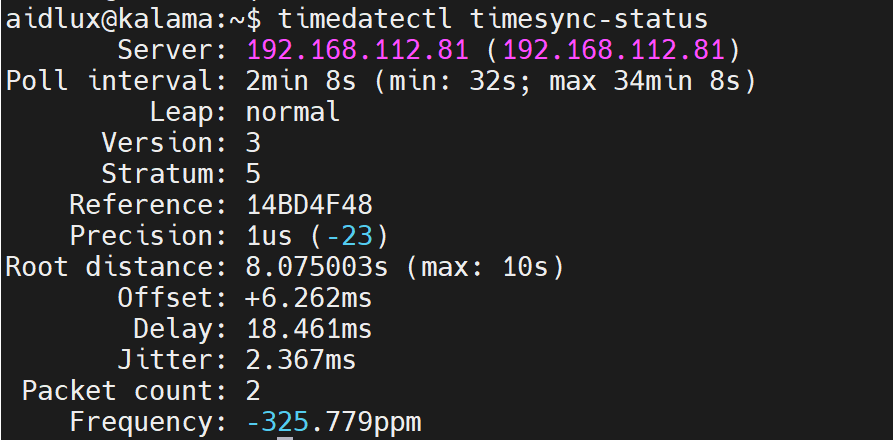
| 检查项 | 期望结果 |
|---|---|
| Server | 客户提供的 NTP Server IP |
| Packet count | > 0 |
| Root distance | ...s (max: 10s) |
步骤 4:查看同步日志
sudo journalctl -u systemd-timesyncd --no-pager -n 5期望日志出现:
Initial synchronization to time server <NTP_Server_IP>:123 (<NTP_Server_IP>)
步骤 5:修改时间验证同步
💡 提示
此步骤仅适用于秒级偏差测试,不建议设置过大时间差。
# 记录当前时间
date "+%Y-%m-%d %H:%M:%S"

# 偏移 1 小时
sudo date -s "$(date -d '+1 hour' '+%Y-%m-%d %H:%M:%S')"

# 等待 10 秒后检查是否自动恢复
sleep 10
date "+%Y-%m-%d %H:%M:%S"
timedatectl timesync-status | grep -E "Packet|Offset"
⚠️ 注意
systemd-timesyncd 仅自动修正秒级偏差。若 Client 时间与 Server 相差过大(如若干天或数年),同步服务会因安全保护机制拒绝同步,需手动执行 sudo ntpdate -s <Server IP> 恢复。
附录:NTP Server 配置参考(仅供参考)
以下为 Server 端配置示例,不在本文档的配置职责范围内,仅供客户环境管理员参考。
以 Windows 11 为例(使用 w32time)
启用 NTP Server
以管理员身份打开 PowerShell,依次执行:
# 启用 NTP Server
Set-ItemProperty -Path "HKLM:\SYSTEM\CurrentControlSet\Services\W32Time\TimeProviders\NtpServer" -Name "Enabled" -Value 1

# 设置为可靠时间源
Set-ItemProperty -Path "HKLM:\SYSTEM\CurrentControlSet\Services\W32Time\Config" -Name "AnnounceFlags" -Value 5

# 放行防火墙 UDP 123 端口
New-NetFirewallRule -Name "NTP Server" -DisplayName "NTP Server (UDP 123)" -Protocol UDP -LocalPort 123 -Action Allow -Profile Any

# 重启时间服务
Restart-Service w32time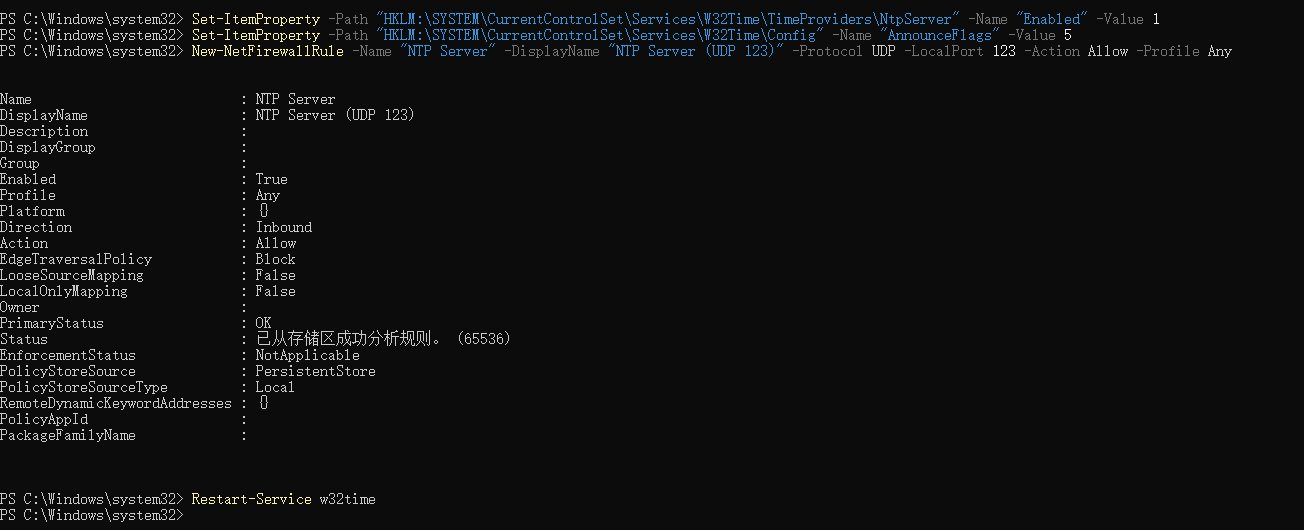
验证 Server 状态
# 确保 Windows 自身时间准确
w32tm /resync

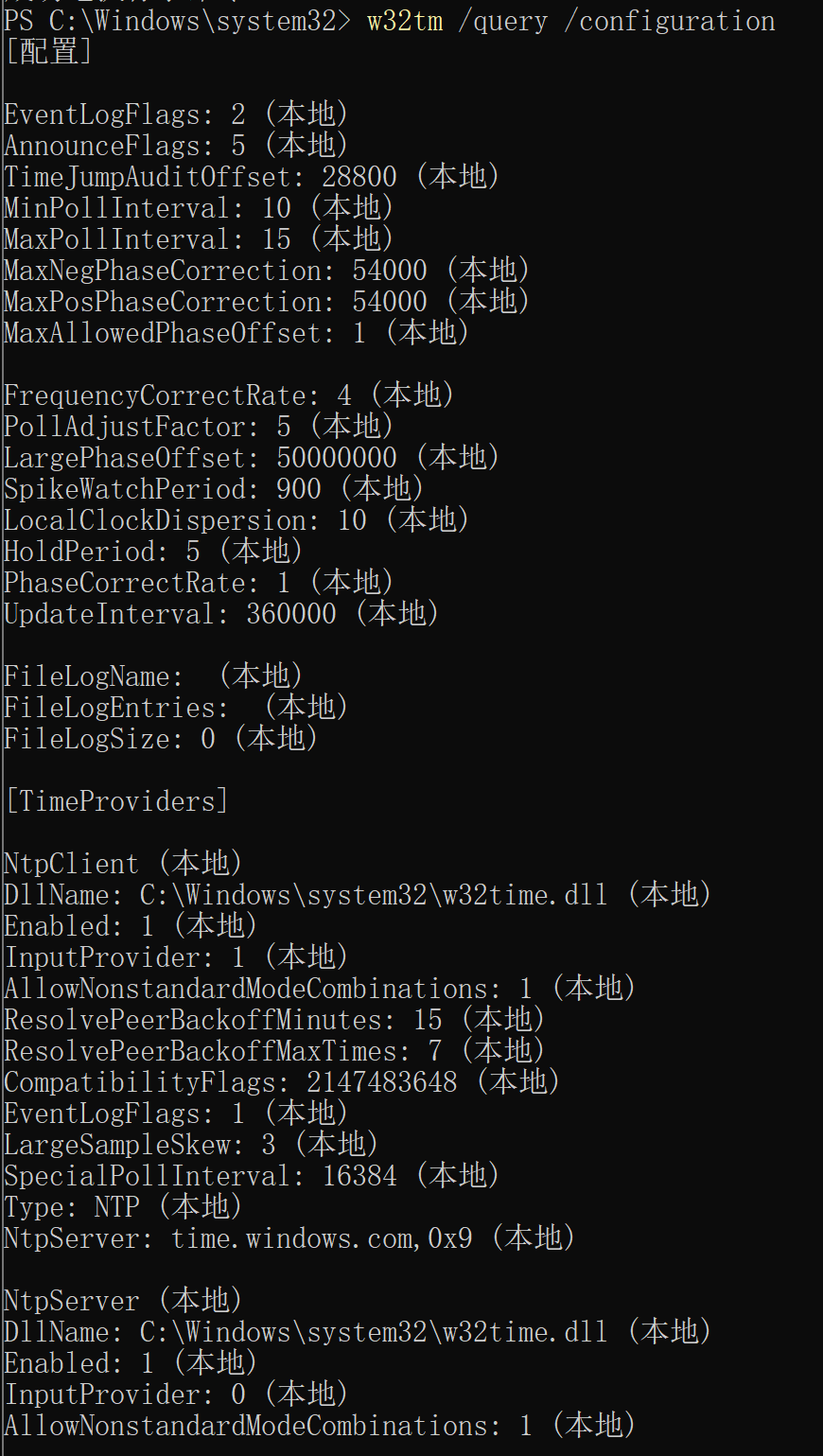
# 查看配置状态
w32tm /query /configuration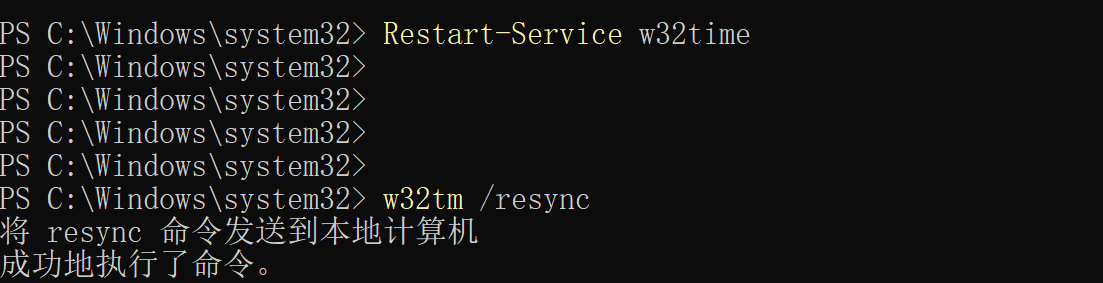
以 Linux (Ubuntu 24.04) 为例(使用 chronyd)
安装 chrony
sudo apt update && sudo apt install chrony -y配置 NTP Server
Ubuntu 24.04 默认已配置上游时间源,只需在 /etc/chrony/chrony.conf 末尾追加两行即可启用 Server:
sudo tee -a /etc/chrony/chrony.conf << 'EOF'
allow 192.168.0.0/16
local stratum 10
EOF| 参数 | 说明 |
|---|---|
allow | 允许指定网段的客户端同步,必须配置,否则不监听 UDP 123 端口 |
local stratum 10 | 上游不可达时的备用时间源 |
放行防火墙
sudo ufw allow 123/udp启动服务
sudo systemctl enable chrony
sudo systemctl restart chrony
验证 Server 状态
# 查看时间源同步状态
chronyc sources -v

# 查看 NTP 服务统计
chronyc tracking

# 确认 UDP 123 端口已监听
sudo ss -uln | grep 123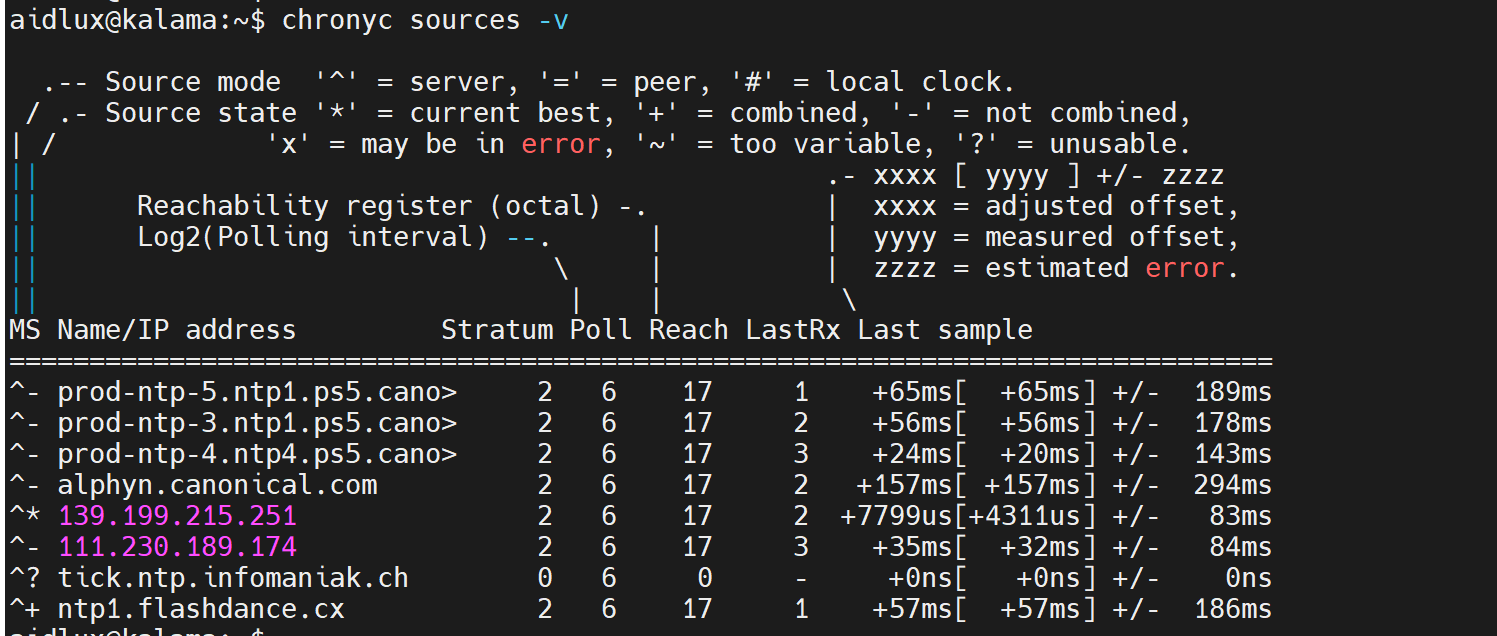
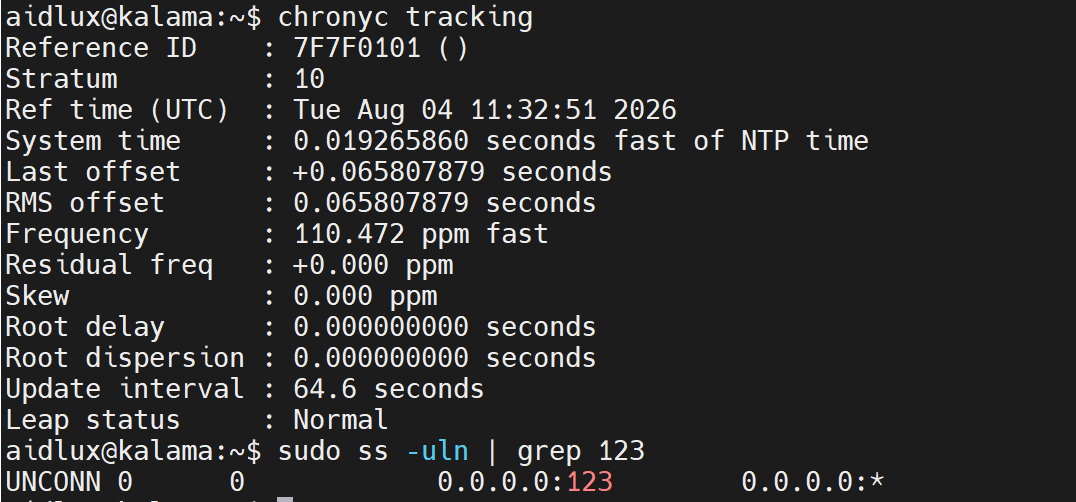
期望输出示例:
$ chronyc tracking
Reference ID    : 7F5D2E3C (ntp.aliyun.com)
Stratum         : 3
Ref time (UTC)  : Sun Aug  3 06:30:00 2026
System time     : 0.000012345 seconds slow of NTP time
Leap status     : Normal
推荐方案:Linux 环境建议使用
chronyd或ntpd,配置更灵活、兼容性更好。
注意事项
| 项目 | 说明 |
|---|---|
| NTP Server 职责 | Server 端由客户环境管理员维护,Client 端仅需其 IP 和端口 |
| RootDistanceMaxSec | 连接 Windows w32time 等 Server 时必须设为 ≥ 9s(推荐 10s) |
| 防火墙 | Server 端必须放行 UDP 123 入站端口 |
| 网络类型 | Windows Server 建议设为“专用网络” |
| 大偏差同步 | Server 与 Client 时间差过大时,需 sudo ntpdate -s 手动同步 |
| 轮询频率 | 动态自适应,初始 32 秒,稳定后最长 34 分钟 |
故障排查
| 现象 | 原因 | 解决方法 |
|---|---|---|
Timed out waiting for reply | 网络不通或防火墙拦截 | ping Server 地址,用 nc -u -zv <IP> 123 检测端口 |
too large root distance. Disconnecting | RootDistanceMaxSec 未配置或太小 | 设为 10s 并重启服务 |
Packet count: 0 | 服务刚启动或 Server 不可达 | 等待 30 秒后重查,确认 Server 在线 |
| 大偏差时间未自动恢复 | 触发 timesyncd 安全保护 | sudo ntpdate -s <Server IP> 手动恢复 |
no server suitable for synchronization | Server 时间异常或 NTP 服务未启动 | 确认 Server 端 NTP 守护进程正常运行 |