Stress Test Tool Deployment
Introduction
Stress Test Tool is a tool for testing system performance, helping users evaluate the stability and responsiveness of the system under different loads.
Supported Platforms
| Platform | Running Method |
|---|---|
| IQ9075 | Ubuntu 24.04 |
Prerequisites
IQ9075 hardware
Ubuntu 24.04 system
System Dependency Configuration
Configure the AidLux Repository
bash
# Download the correct public key
sudo wget -O- https://archive.aidlux.com/ubuntu24/public.key | gpg --dearmor | sudo tee /etc/apt/trusted.gpg.d/private-aidlux.gpg > /dev/null

# Edit the source file
sudo vim /etc/apt/sources.list.d/private-aidlux.list

# Add the private key provided by AidLux to the source file
deb [arch=arm64 signed-by=/etc/apt/trusted.gpg.d/private-aidlux.gpg] https://archive.aidlux.com/ubuntu24 noble main

# Update the cache
sudo apt update
After the update, you can obtain the official AidLux SDK dependencies with the following command:
bash
sudo apt list | grep aid | grep unknownbash
# Install software
# Must be installed first; not included with the system
sudo apt install python3 python3-pip libopencv-dev python3-opencv  net-tools
# Required before installing aidlite
sudo apt install aidlux-aistack-base aidrtcm

# Install aidlite and its dependencies
sudo apt install aid-lms aidlms-sdk aidlite-sdk cmake
sudo apt-get install libfmt-dev nlohmann-json3-dev
sudo apt install aidlite-*

# Enable DSP support
sudo apt-get install qcom-fastrpc1
sudo apt-get install qcom-fastrpc-dev

# Install the aidgen SDK
sudo apt install aidgen-qnn240-sdk

# Install the mms service
sudo apt install aid-mms

# Enable GPU support
sudo apt-add-repository -s ppa:ubuntu-qcom-iot/qcom-ppa
sudo apt install qcom-adreno-cl1
sudo ln -s /usr/lib/aarch64-linux-gnu/libOpenCL.so.1 /usr/lib/aarch64-linux-gnu/libOpenCL.so
After installation, check that the aidlite and aidgen directories have been added under /usr/local/share.
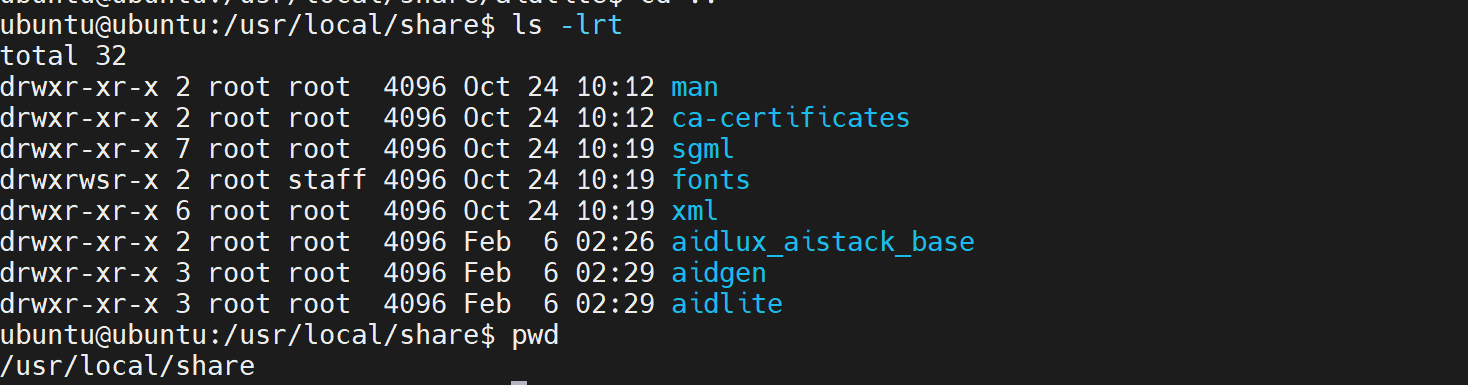
Device Authorization
Obtain the Device SN Code
bash
cat /sys/devices/soc0/serial_numberObtain the License File
Provide the SN code to the Aplux technical staff to generate a device-specific License file, and place it under /etc/opt/aidlux/license/AidLuxLics.
Activate Authorization
bash
sudo /opt/aidlux/cpf/aid-lms/manager.sh restartStress Test Tool Installation and Usage
bash
sudo apt install stresstest-backendAfter installation, you can start the Stress Test Tool with the following command:
bash
# Start Stress Test Tool and set the CPU and NPU load to 50%. The 9075 does not currently support GPU stress testing.
StressTest --cpu-load 50 --npu-load 50
After startup, the system displays the current load:
plain
========================================
  Stress Test Configuration
========================================
  CPU cores:         8
  CPU global load:   50%
  CPU effective loads: cpu0=50% cpu1=50% cpu2=50% cpu3=50% cpu4=50% cpu5=50% cpu6=50% cpu7=50%
  NPU devices:       2
    NPU[0] load=50% model=/usr/local/share/stress/qnn240/../npu.bin
    NPU[1] load=50% model=/usr/local/share/stress/qnn240/../npu.bin
  GPU devices:       0
  MEM load:          0%
  Monitor interval:  1 sec
  Duration:          0 sec (0=infinite)
  Print to terminal: OFF
  Save to CSV:       OFF
========================================

[CPU] Started 8 stress threads on 8 cores, target: 0%
[NPU] Started 2 device(s), target: 50%